Creating a link
In the editor you create a link to a page of your own website, to a file such as a PDF, or to another website. First open the editor with Editor....
A link to a page of your own website
- Select the text that should become the link.
- Click the chain (Link) in the toolbar. The Choose URL window opens.
- On the left, click the page's folder and then, on the right, the page. You see the address at the top, for example
/about-us. - Click OK.
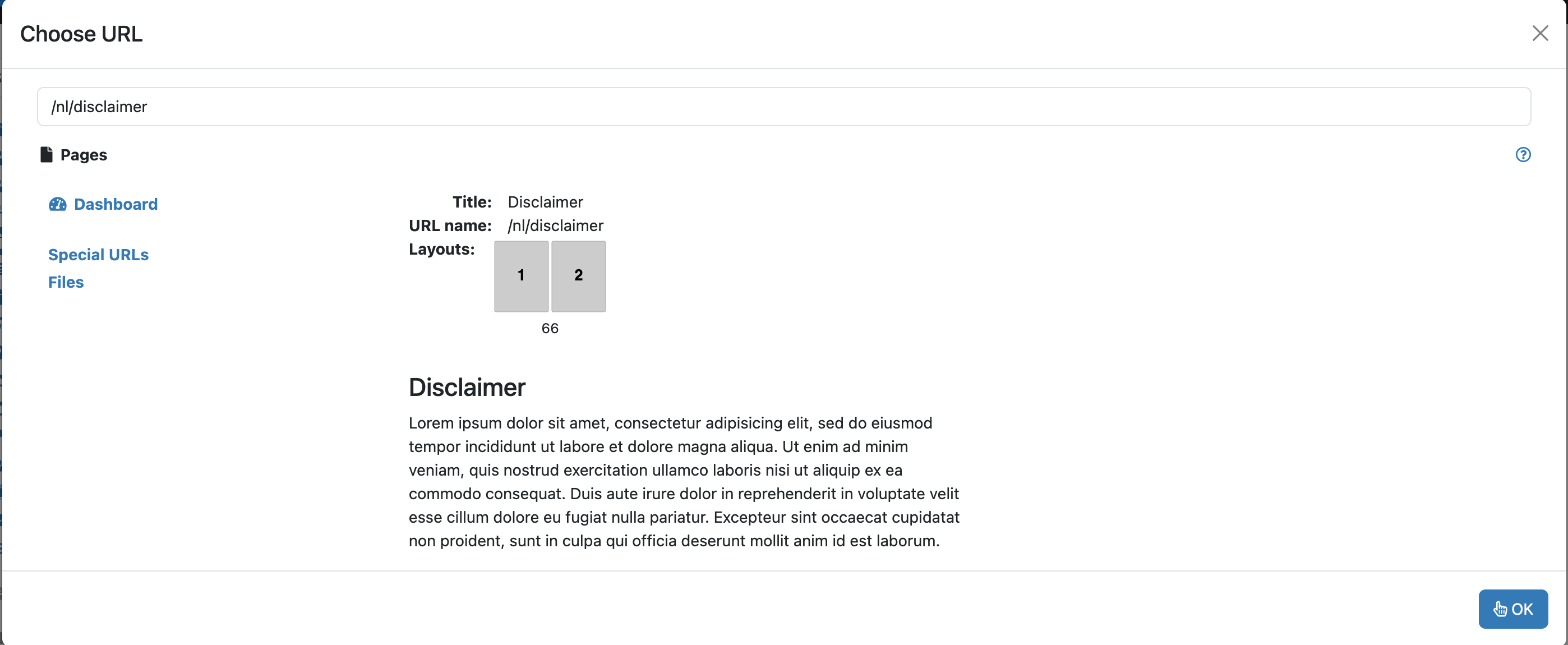
If you choose a page without selecting text first, Xanti puts the page title into the text as the link text. A link to a page of your own website keeps working if the URL name changes later: Xanti then creates a redirect.
A link to a file or PDF
- First put the file on the website with the file manager.
- Select the text and click the chain.
- At the bottom left, click Files, open the file's folder and click the file name.
- Click OK.
A link to another website
- Select the text and click the chain.
- Type or paste the full address into the field at the top, with
https://in front. - Click OK.
Changing or removing a link
Put the cursor in the link and click the chain: the current address is already in the window. Change it and click OK. To remove the link, click the broken chain (Unlink), or empty the address and click OK. The text itself stays.
Opening in a new window
Links in the text open in the same window. That is usually what visitors like best. On a menu item you can tick Open link in new window.
A link doesn't work? See "URL names and redirects".
See also
- Formatting text in the editor
- URL names and redirects
- Adding a page to the menu
Checked: November 2026