Formatting text in the editor
With the editor you format a text: headings, bold, bulleted lists, links, images and tables. You see the text roughly as it will look on the website.
Opening the editor
- Open the page and click Edit.
- Below the text field, click Editor.... A toolbar appears above the text.
- Format the text and click Save.
Source... below the editor takes you back to the plain text field with the HTML code.
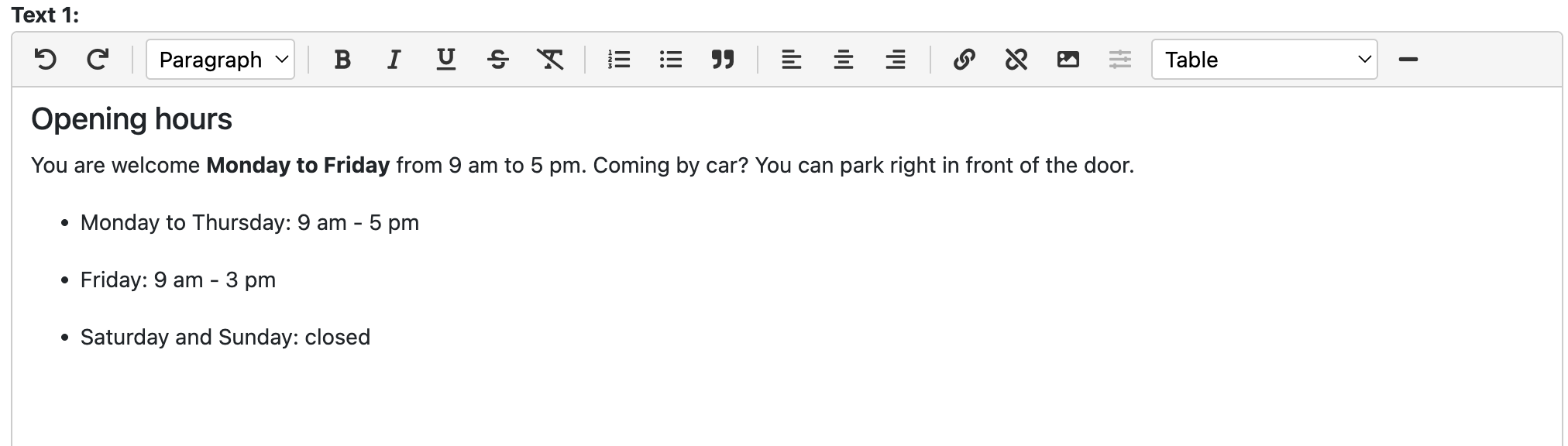
The buttons
When you hover over a button, you see its name.
| Button | What it does |
|---|---|
| Arrows back and forward (Undo, Redo) | Undo or redo the last change. |
| Paragraph drop-down list | Turn a line into a heading: Heading 2 for a chapter, Heading 3 for a section. Paragraph is normal text. |
| B, I, U, S (Bold, Italic, Underline, Strikethrough) | Bold, italic, underlined, struck through. |
| Eraser (Remove format) | Remove all formatting from the selected text. |
| Lists (Numbered list, Bullet list) | A numbered list or a bulleted list. |
| Quotation mark (Blockquote) | A quote. |
| Align (Align left, center, right) | Text left, centred or right. |
| Chain (Link, Unlink) | Create or remove a link. |
| Image (Image, Image properties) | Insert an image or change its properties. |
| Table drop-down list | Insert a table and add or delete rows or columns. |
| Line (Horizontal rule) | A horizontal line. |
Use headings to structure your text, not just bold text. It reads more easily and Google understands the page better. The page title is already the main heading.
Creating a table
- Put the cursor where the table should go.
- In the Table drop-down list, choose Insert table. You get a 3 by 3 table with a header row.
- Put the cursor in the table and choose, in the same list, for example Row below or Column after.
Pasting text from Word
Text from Word or a website often brings along fonts and colours that don't match your website. So paste without formatting with Ctrl+Shift+V (Mac: Cmd+Shift+V) and then format the text with the buttons. If the text is already pasted, select it and click the eraser (Remove format).
See also
- Creating a link
- Creating a layout with columns
- Adding or editing a page
Checked: November 2026