Restoring a previous version
Did you change a text and want to go back to how it was? Xanti remembers every change. You can view an earlier version and restore it with one click.
- Open the item, for example the page or the news item.
- Click More and choose Previous Versions. You also find this button in the info panel of the item, next to Change History.
- You see a list of all changes: Date/Time, User and Changed fields. Each row is the item as it was before that change.
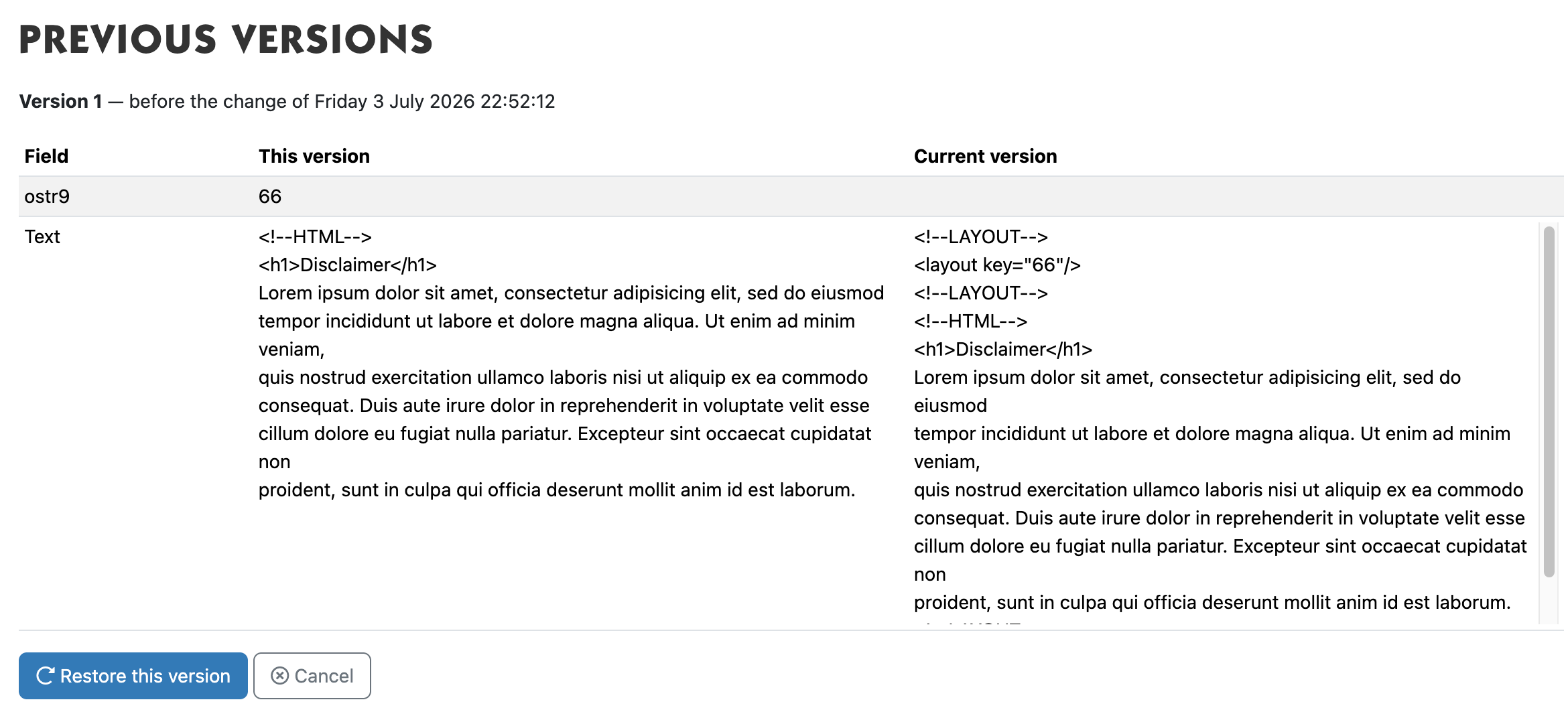
- Click the eye icon (View) next to the version you are looking for. For each field you see This version next to the Current version.
- Is this the right version? Click Restore this version and confirm with OK.
- You are taken back to the item. The old text is back.
Restoring is safe. The restore itself is also saved as a change. If you picked the wrong version, just restore the version from before the restore.
Good to know
- Does a row say identical to current? Then that version is the same as now, and there is nothing to restore.
- Not restorable lists fields that Xanti cannot be sure to restore correctly. Those fields keep their current value. Passwords are never restored.
- Looking for the changes of one colleague? Click the name under Only show changes by.
- Was the item deleted? Then it is not here, but in the Trash.
The change history
Do you want to know who changed what and when on the whole website? In the Tools & Settings menu, choose Change History. With Show Differences you see the old and new text for each change.
See also
- Deleting something and putting it back from the trash
Checked: November 2026