Deleting something and putting it back from the trash
Everything you delete in the admin goes to the Trash first. So a page, news item or user is not gone right away. You can put it back later.
Deleting something
- Open the item and click Delete.
- Does it contain other items, for example the pages in a folder? Then Xanti first asks Are you sure you want to delete … items?. Tick Yes, delete … items. and click Delete again.
- You see a message that the item was deleted. Was it a mistake? Click Undo in the message right away.
Putting an item back from the trash
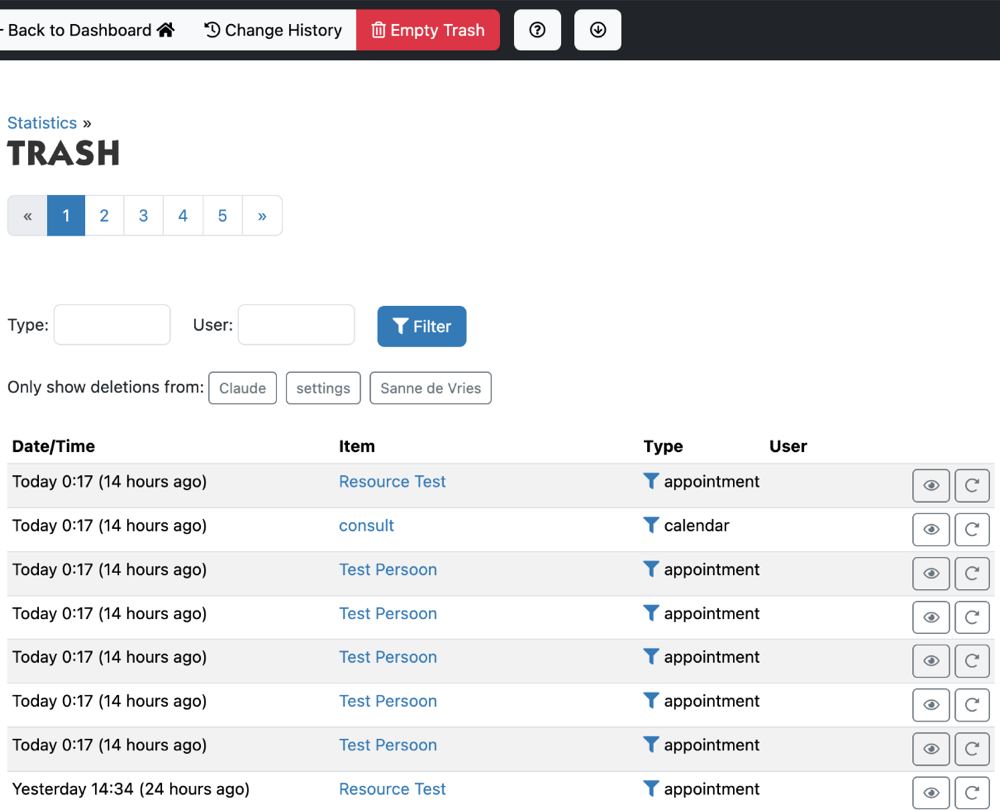
- At the top, click the Tools & Settings menu (the sliders icon) and choose Trash.
- You see the deleted items, the most recently deleted at the top, with the date and who deleted it.
- Looking for something one person deleted? Click the name under Only show deletions from. With the funnel icon next to Type you see only items of the same kind.
- Click the eye icon (View) to look at the item first.
- Click the arrow icon (Put Back), or click Put Back in the item view.
- You see Item successfully restored from trash. The item is back in its old place, with everything that was in it.
Do you get the message Put back the folder it was in first.? Then the folder the item was in has been deleted too. Put back that folder first, then the item.
Emptying the trash
You don't need to empty the trash yourself. Only Telartis can delete items permanently. Do you want something to be gone completely, for example for privacy reasons? Ask support.
Deleted files
Files and images you delete in the Filemanager have their own trash. They stay there for 30 days. See the chapter Images and files.
See also
- Restoring a previous version
- Seeing where a file is used, cleaning up and restoring
Checked: November 2026