Exporting data to Excel
You can download the items of a folder, such as news articles, products or users, as a file for Excel. This is how you make an export.
Exporting the items of a folder
- Open the folder in the admin.
- Click More > Export.
- If the folder contains different kinds of items, choose at the top which kind you want to export.
- Click Textfile or Excel spreadsheet.
- Choose whether to export only this folder or all folders with this kind of item.
- Choose the file type. For Excel, choose Microsoft Excel spreadsheet (XLS).
- Optionally tick Skip long text fields. The file then becomes smaller and easier to read.
- At the top, click Export File. The file is downloaded.
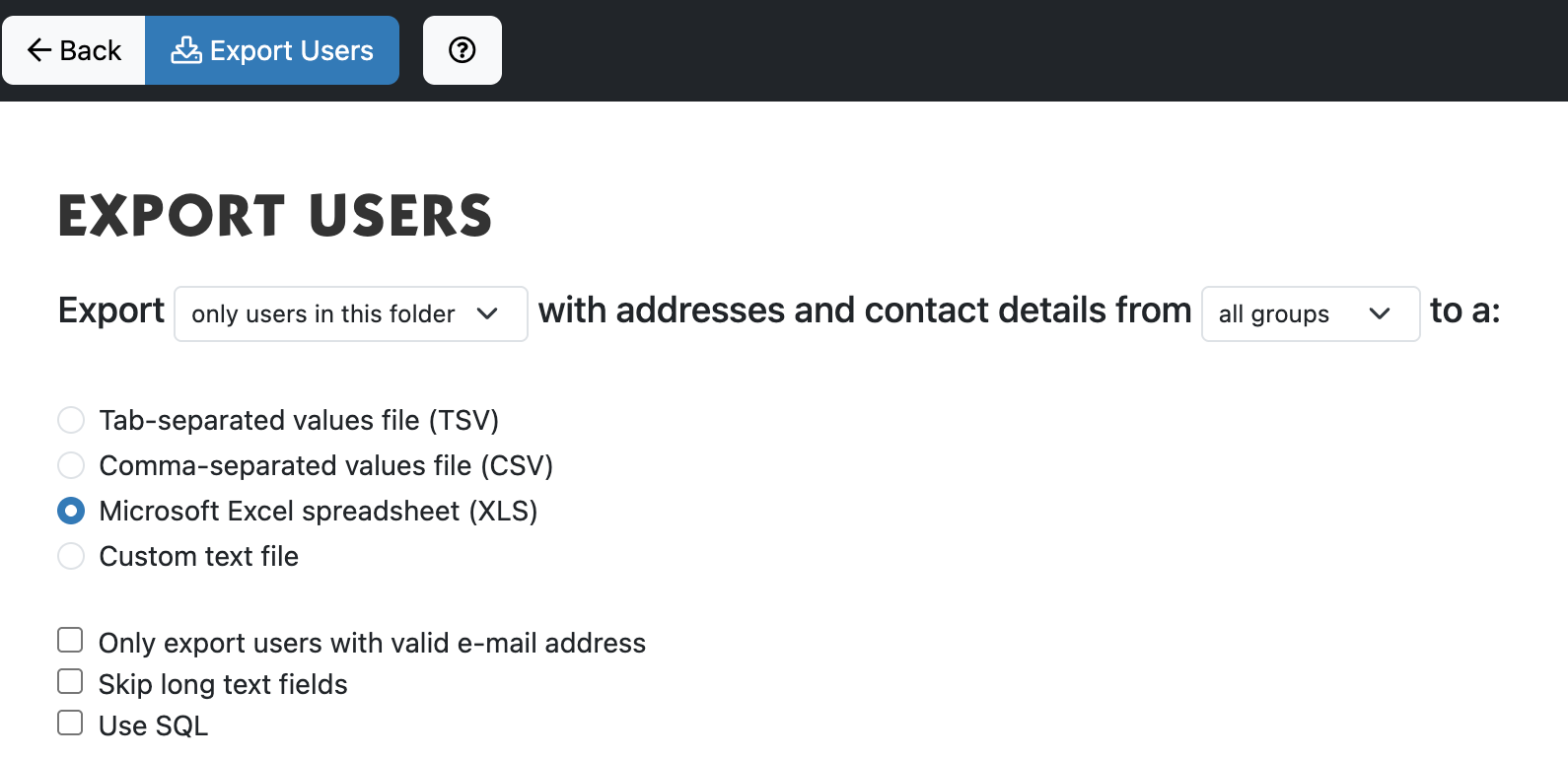
Under Sample export format you see in advance what the file will look like. Leave the Use SQL option off; it is meant for developers.
Exporting users
- Open the folder with users and click More > Export > Textfile or Excel spreadsheet.
- Choose all users or only users in this folder, and optionally one group instead of all groups.
- Tick Only export users with valid e-mail address if you need the list for a mailing.
- Choose the file type and click Export Users.
A group's page also has an Export button for the members of that group.
For Excel, preferably choose XLS. A CSV file uses commas; Excel set to some languages, such as Dutch, then sometimes puts everything in one column.
You export the answers of a form in a different way: see Viewing and exporting results.
See also
- Viewing and exporting results
- Filtering and sorting lists
- Changing several items at once
Checked: November 2026