Filtering and sorting lists
In a long list, such as news articles or users, the filter bar helps you find what you're looking for quickly. This is how it works.
Filtering a list
- Open the folder in the admin.
- Above the list, click Filter. A bar appears with a field for each property of the items. The Filter button is only there for a list of 10 or more items.
- Fill in what you want to filter on:
- for a date: on or after and/or on or before a date;
- for a drop-down list: the value, for example Yes or No;
- for a text field: a word the field contains.
- Click Apply or press Enter.
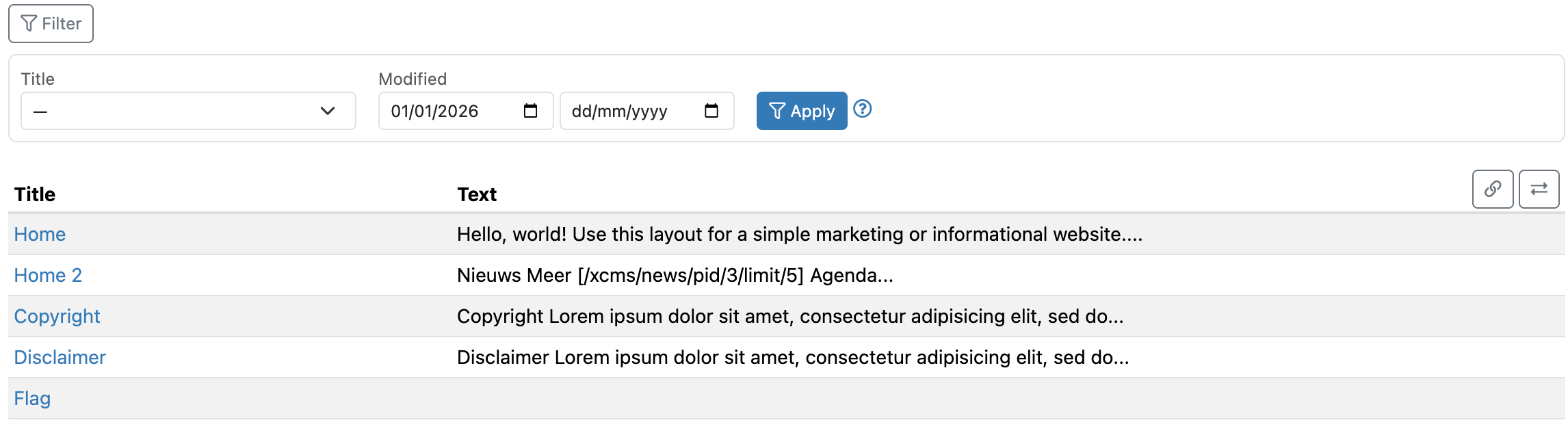
The active filters now appear above the list as small buttons, with how many items are left (for example 12 of 340 items). Click a button to remove that filter, or click Clear filters to remove them all.
The filter stays in place when you open an item and go back to the list.
The filter bar only appears for a list of 10 items or more. The Modified field is always there: handy for seeing what was changed recently.
The order of a list
- You set the fixed order of a folder via More > Edit (under Folder). At Sort order, click Change and choose which field to sort on, Ascending or Descending.
- Do you want to put the items in an order yourself? Choose More > Sort (under Items).
See also
- Changing several items at once
- Exporting data to Excel
Checked: November 2026