Adding or editing a user
Everyone with an account on your website is a user: webmasters, members, participants and newsletter subscribers. In the admin you find them in the Users folder in the menu on the left. On your website this folder may have a different name.
Adding a user
- In the menu on the left, click Users.
- Click Add User.
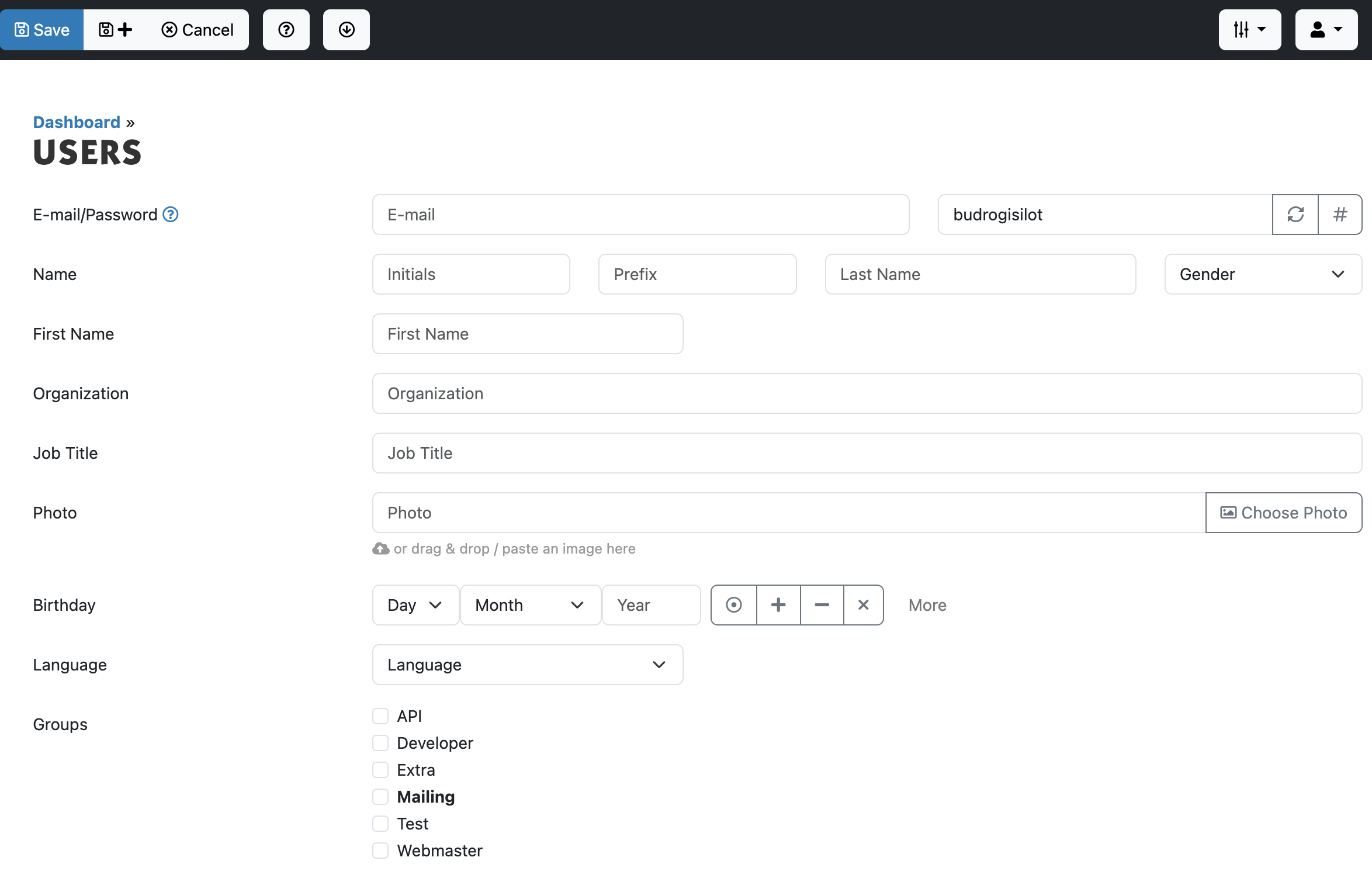
- Fill in the e-mail address at E-mail/Password. The password is already filled in with a new, random password.
- Fill in the name: at Name the Initials, the Prefix, the Last Name and the Gender, and below that the First Name. Fill in at least a last name, first name or Organization.
- Fill in the other fields you need, such as Job Title, Photo, Birthday, Language, the address, phone numbers and Remarks.
- At Groups, tick the groups the user belongs to. With Webmaster the user can log in to the admin.
- Click Save.
Editing a user
- Find the user in the list, or type a name or e-mail address in the search box.
- Click the user. You see the details, the groups and Last login.
- Click Edit, change the details and click Save.
With Delete the user goes to the Trash. You can restore them from there.
Do you see the red Duplicate users button on a user? Then another user has the same e-mail address. Click it to compare them.
Quick Add
Do you already have the details as text, for example from an e-mail signature? Then click Quick Add (the button with the lightning bolt). Paste the text into the box with the name on the first line and click Add. Xanti puts the e-mail address, address, phone numbers and websites in the right fields. Check the user afterwards.
See also: Groups and permissions, Changing a password or e-mail address, Logging in as a user
Checked: November 2026