Logging in as a user
Do you want to see what a user sees on the website, for example a members' page? As a webmaster you can log in as that user, without knowing their password.
Logging in as a user
- Open the user in the admin.
- At the top right of the details, click the button with the arrow pointing inwards (Logon).
- A new tab opens. In it you are logged in to the website as the user.
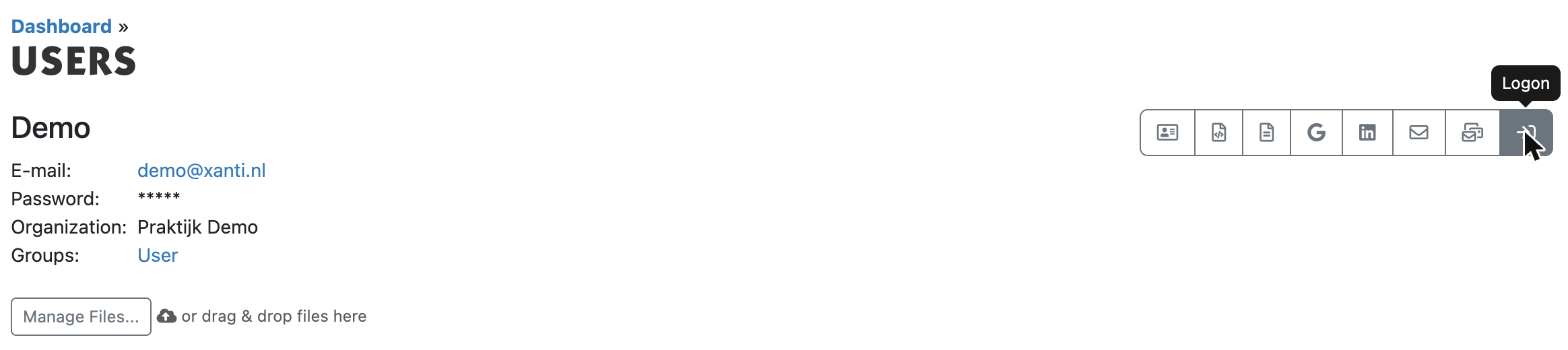
Note: you are now logged in as the user in this whole browser, including the tab with the admin. Afterwards, click Sign out and log in again with your own e-mail address. Xanti records which webmaster logged in as which user.
Viewing the website without webmaster rights
Do you only want to see what a visitor sees who is not logged in as a webmaster? Then click the person icon at the top right (Account-menu) and choose Webmaster. You are then temporarily no longer a webmaster. Log out and in again to get your rights back.
Switching accounts
On some websites one person has several accounts with the same e-mail address, for example for different organizations. If this feature is on for your website, the user can switch themselves:
- Log in to the website and go to My Account.
- Click Switch account.
- Choose the account you want to use. Your own account is listed with (your own account).
- Click Switch.
Another account never gives you more rights than your own account. Would you like this feature on your website? Ask the helpdesk.
See also: Adding or editing a user, Groups and permissions
Checked: November 2026