Viewing and exporting results
All answers to a form or survey are saved. You can view them in the admin or download them as a file for Excel.
Viewing the results
- Open the folder of the form.
- Click More and, under the heading Questions, choose Results.
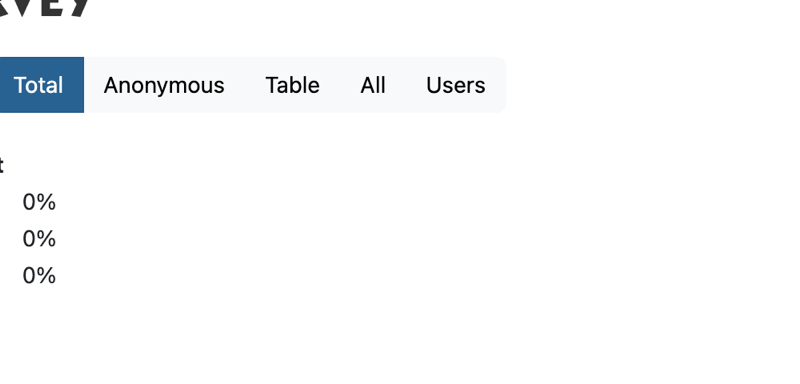
- At the top, next to View Results, choose a view:
- Total: for each question, how often each answer was chosen, and all open answers.
- Anonymous: the same, but without names.
- Table: the totals as a table.
- All: for each question, who gave which answer.
- Users: a list of everyone who filled in the form. For each person there are buttons to view the answers (View), download them as a PDF (Download) or erase them (Delete).
Exporting answers to Excel
- Open the folder of the form and click More > Export.
- Click Textfile, Excel or SPSS file with all given answers.
- Choose the kind of file. For Excel, choose Microsoft Excel spreadsheet (XLS).
- If you like, tick Skip long text fields if you don't need long open answers.
- Click Export Answers.
- The file is created and sent to your own e-mail address. With many answers this can take a while.
Does Excel say the file format does not match when you open it? Click Yes; the file opens normally.
Deleting answers
With More > Delete Answers you erase all answers of the form, for example after a test round. This cannot be undone: export the answers first if you want to keep them.
See also
- Creating a form or survey
- Receiving answers by e-mail
- Exporting data to Excel
Checked: November 2026