Receiving answers by e-mail
Do you want to get an e-mail when someone fills in the form? Add a question of the type Send E-mail. The visitor does not see this question; Xanti sends the e-mail when the page with this question is submitted.
- Open the folder of the form and click Add Question.
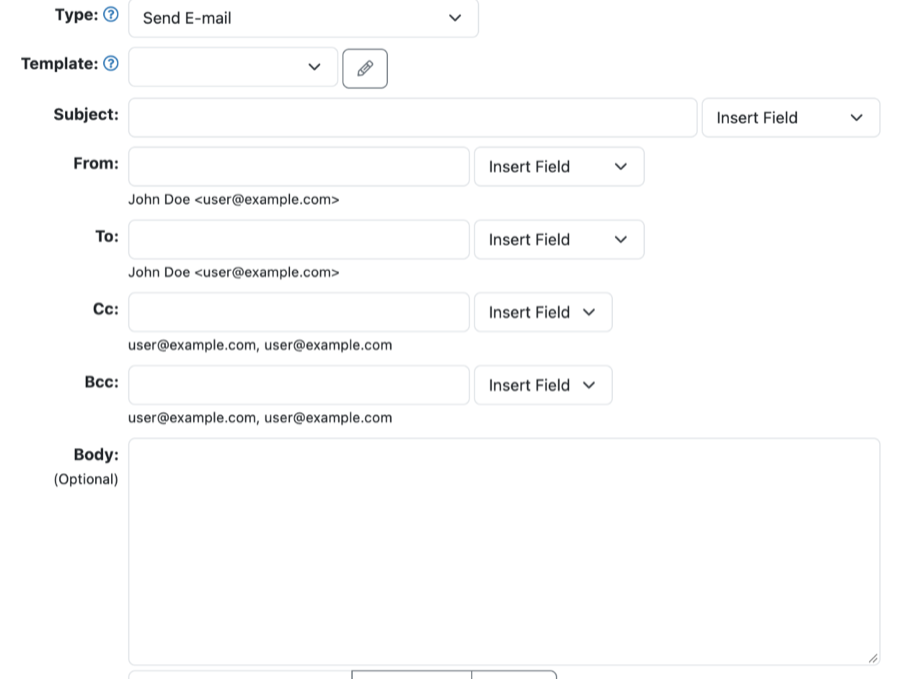
- Under Type, choose Send E-mail. The form now shows the fields for an e-mail.
- Under Subject, enter the subject of the e-mail, for example New message via the website.
- Under To, enter your own e-mail address. Put more addresses under Cc or Bcc, separated by a comma.
- Under From, enter the sender, for example Website <info@example.com>.
- Type the content of the e-mail in the text box. In Insert Field, choose All questions and given answers: then all answers are in the e-mail.
- Click Save.
- Put the question on the last page of the form, with the last questions (before a Page break). Use More > Sort if needed.
A confirmation to the person filling in the form
You can also send the person who filled in the form a confirmation. To do so, create a second question of the type Send E-mail:
- Make sure the form has a question of the type User E-mail address, so Xanti knows the e-mail address of the person filling it in.
- Under To, choose Name <E-mail> in Insert Field.
- Write a short thank-you text and, if you like, also insert All questions and given answers.
Not keeping the answers
If you tick Delete user answers after sending mail in the e-mail question, the answers are erased after sending. They are then only in the e-mail and no longer in the results.
Does the e-mail not arrive? First check your junk mail (spam) folder.
See also
- Creating a form or survey
- Question types and settings
- Viewing and exporting results
Checked: November 2026