Changing your password or e-mail address
You change your own password and e-mail address in your own details in the admin. As a webmaster, you set a new password for another user in the same way.
Your own password or e-mail address
- Click the button with the person icon at the top right (Account-menu) and click your name.
- Click Edit.
- At E-mail/Password your e-mail address is on the left. Change it if you want a different e-mail address.
- On the right is the empty field New Password. Type your new password there. You can also click the button with the arrows (Reset Password): Xanti then creates a password for you. Write it down before you save. If you leave the field empty, your password stays the same.
- Click Save.
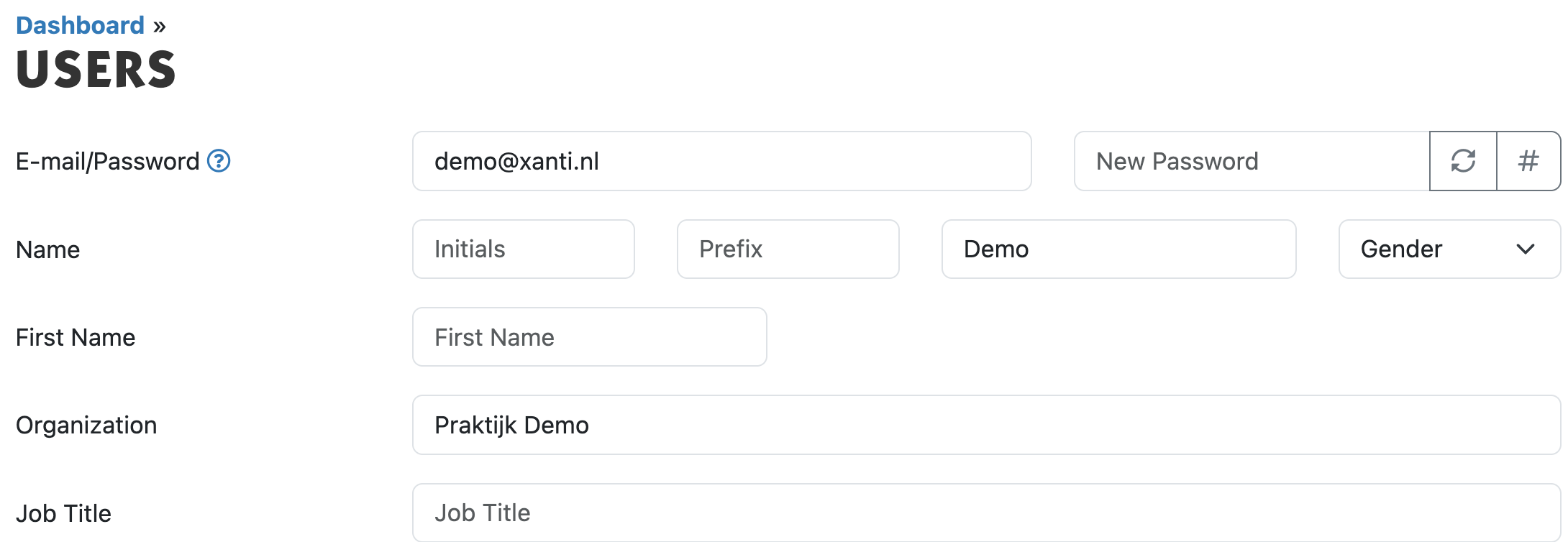
Your e-mail address is also your login name. After a change, you log in with the new e-mail address.
Another user's password
Nobody can see existing passwords, not even you as a webmaster: the New Password field is empty. You can set a new password, though.
- Open the user and click Edit.
- Type a new password or click Reset Password, as above.
- Click Save and pass the password on in a safe way, for example by phone.
Is Reset your password? turned on for your website? Then users can also create a new password themselves. That is safer.
Password requirements
- at least 8 and at most 72 characters;
- not only digits, and not a date;
- not 4 or more of the same character in a row (such as 1111);
- no sequence of 4 or more characters (such as 1234, abcd or qwer);
- not a commonly used password and not the user's name.
If the new password doesn't meet these requirements, you see a red error message in place of the password on the user. Nobody can log in with that password. Set a better password.
See also: Logging in to the admin, Adding or editing a user
Checked: November 2026