The admin
After logging in, you are in the admin. On the left are your website's folders, at the top a dark bar with buttons, and in the middle you work on the content. Everything is in folders, just like files on your computer. One difference: a folder always holds one kind of content, for example pages, news items or users.
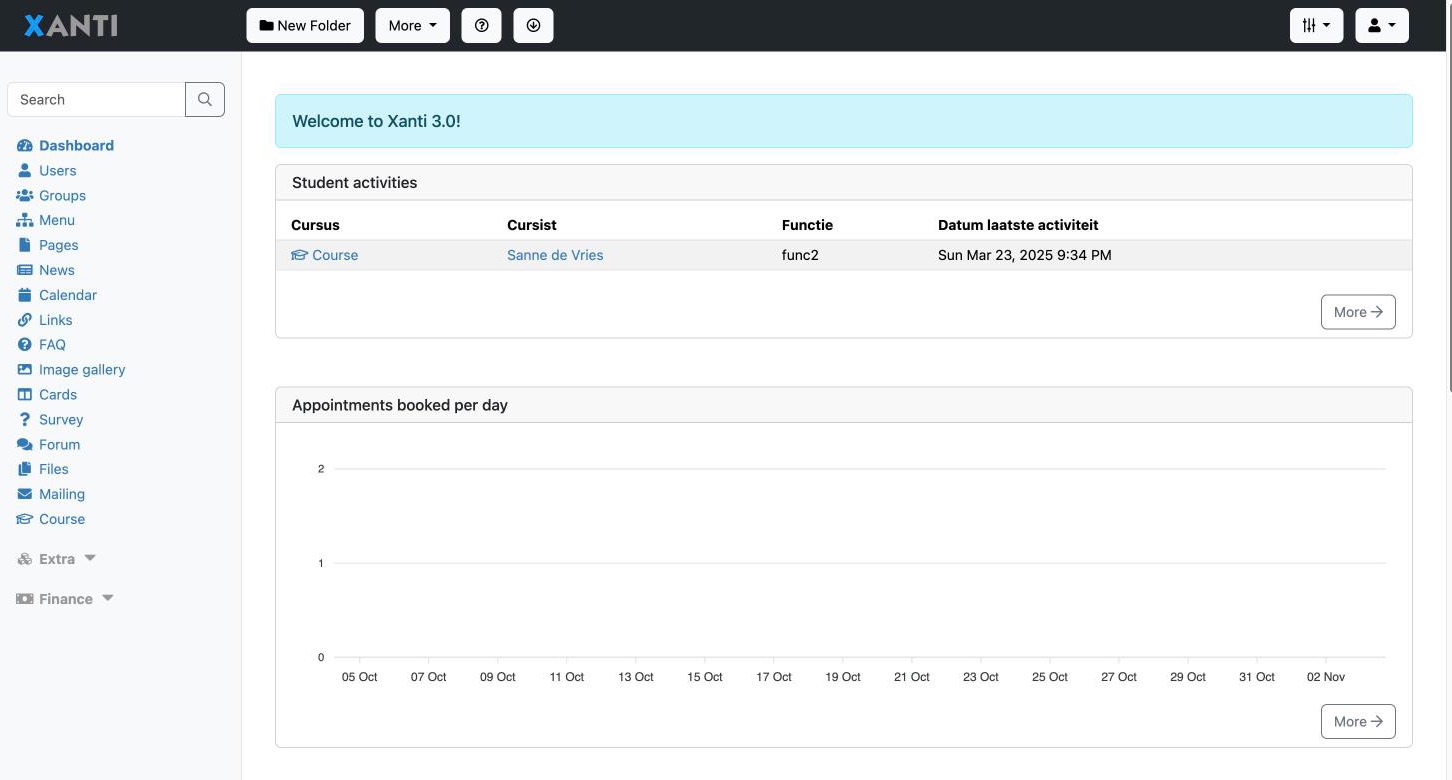
The folders on the left
On the left you see your website's folders. Click a folder to see what is in it. At the top is the Search field: it searches the folder you are in at that moment. With the magnifying glass (Show search options) you choose other ways to search, or Search in all folders.
The bar at the top
- Xanti (top left) opens your website in a new tab.
- The buttons in the middle belong to what you have open, such as Edit or Add Page.
- Hover over the i icon for short information about the folder or item. Click it for all details, such as Created, Modified and Permissions.
- The ? icon opens the page in this manual that belongs to the screen.
- The chain icon (Permalink) shows the page on your website.
- On the right are Tools & Settings (sliders icon), with among others Filemanager, Statistics, Change History, Trash and Preferences, and the Account-menu (person icon) with your own name and Sign out.
The list in a folder
When you open a folder, you see the items in it, with the subfolders above them. Click an item to open it. At the top are the buttons New Folder and Add ..., for example Add Page or Add News item. The folder decides which item you add.
Buttons on an item
When you have an item open, you see:
- Edit: edit the item.
- Add: a new item in the same folder.
- Duplicate: make a copy.
- Move: to another folder.
- Delete: after Are you sure? the item goes to the trash. In the message that follows, Undo puts it straight back.
- Previous and Next (arrows at the top right) go to the previous or next item in the folder.
The More menu
Under More are actions for the whole folder (Folder: Edit, Duplicate, Move, Delete, Print) and for several items at once (Items: Sort, Copy, Move, Delete). Below that you find, among others, Change History, Previous Versions, Import and Export. You only see what is possible at that moment: for example, you can only delete a folder when it is empty.
The dashboard
If you haven't chosen a folder yet, you see the dashboard with blocks:
- Statistics: a chart of your website's visitors.
- Change History: the last five changes.
- Last logins: who logged in most recently.
- Checks: shortcuts to checks such as Duplicate users and Link Check. A red line means there is something to improve.
More under a block opens the full overview.
Folder settings
Use More > Edit (under Folder:) to change a folder. At Folder content you choose which kind of items the folder holds. You can only do that while the folder is empty. At Permissions you decide who may see the folder.
What is in the admin does not always show up on your website by itself. Sometimes you still need to add a new folder to your website's menu. Check the result with the chain icon (Permalink).
See also
- Adding or editing a page
- Folders, order and visibility
- Deleting something and putting it back from the trash
- Restoring a previous version
- Filtering and sorting lists
- Groups and permissions
Checked: November 2026