Setting up and using two-factor authentication
Two-factor authentication gives your account extra protection. When you log in, after your password you also enter a 6-digit code from an app on your phone. Someone who has your password still cannot log in without your phone. You turn it on yourself, for your own account.
Setting it up
- Log in. Then go to your website's address with
/totp-setupafter it, for examplehttps://www.example.com/totp-setup. - Click Enable Two-Factor Authentication.
- Don't have an authenticator app yet? Install one on your phone, for example Google Authenticator, Microsoft Authenticator or Authy.
- Open the app and scan the QR code on the screen. If that doesn't work, click Can't scan the QR code? and type the code that appears into the app.
- Click Optional: View Backup Codes (can be generated later) and then Download Backup Codes or Print Backup Codes. Keep the codes in a safe place, not on your phone.
- Enter the 6 digits from the app at Verification Code: and click Complete Setup.
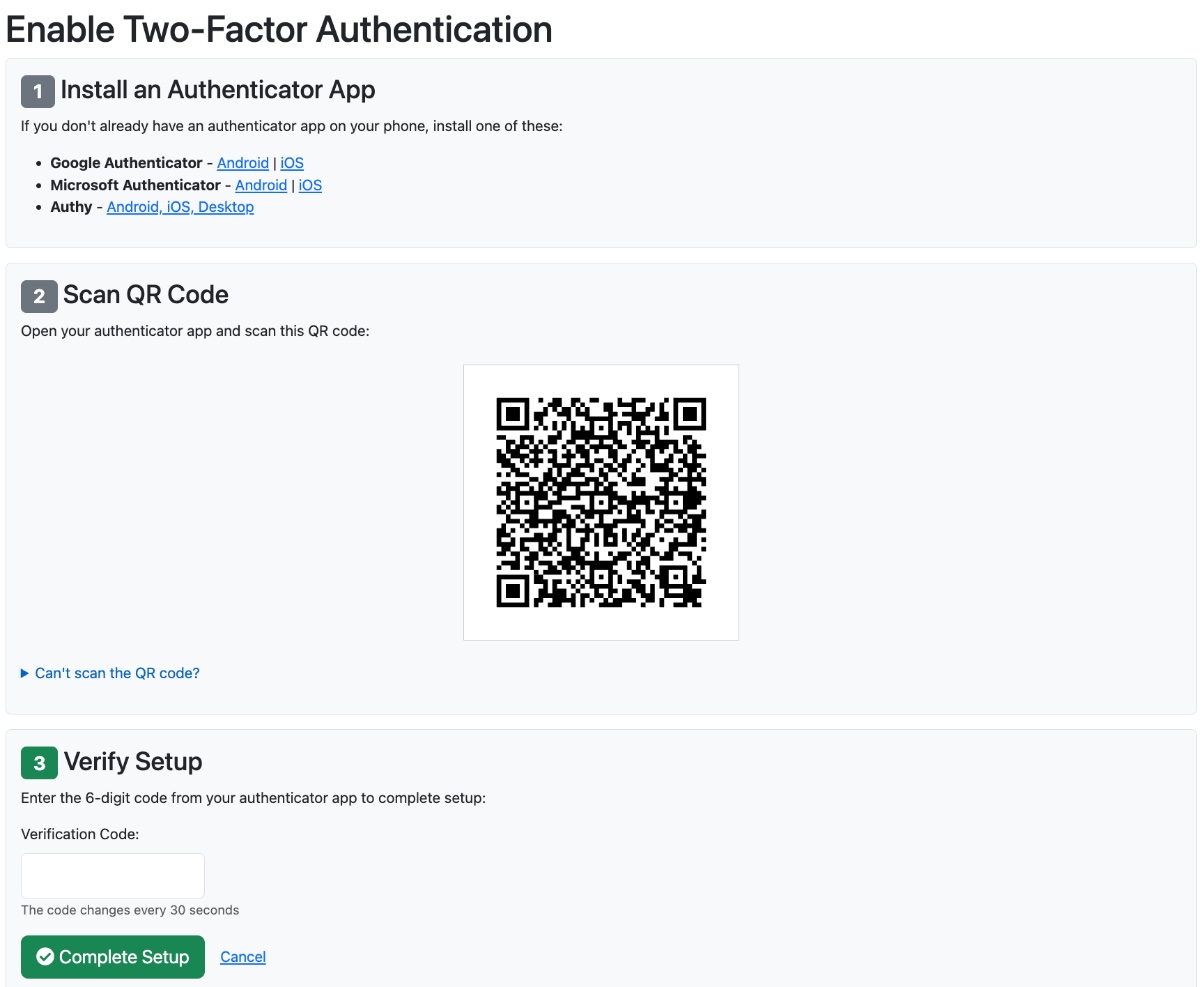
Finish the setup within 15 minutes. Otherwise you see Setup session expired. Please start the setup process again.
Logging in with a code
- Log in with your e-mail address and password.
- Check at Account that it is your own account.
- Enter the code from the app at Authentication Code: and click Verify Code. You get a new code every 30 seconds.
Don't have your phone with you? Click Use backup code instead, enter a code at Backup Code: and click Use Backup Code. Each backup code works only once.
The code doesn't work
- Invalid code. Please try again. Wait for a new code. Check that you are using the code for the right website. Check that the time on your phone is set automatically.
- After 5 wrong codes, or if you wait longer than 5 minutes, you have to log in again.
- Lost your phone or got a new one? Log in with a backup code. Then, on
/totp-setup, turn two-factor authentication off and on again with your new phone. - No phone and no backup codes left? Contact the helpdesk.
Managing it
On /totp-setup you see how many backup codes you have left. Regenerate Backup Codes gives you new codes, and the old ones stop working. Disable Two-Factor Authentication turns it off. For that, you first enter your password.
See also: Logging in to the admin, Changing your password or e-mail address
Checked: November 2026