Making and revoking an API token
With an API token, a program or AI assistant works in your website as you, with the same permissions. You make the token yourself in the admin. To do so, you must be in the API group and have an API policy. A developer sets these up for you.
Making an API token
- In the menu on the left, click Users and open your own user.
- Click the button with the key (API tokens). You see the API tokens page.
- Under API access you see what your tokens may use, with Maximum days, Maximum tokens and IP addresses.
- Do you already have tokens? Then click New API token.
- Under Name, enter what the token is for, for example Claude Code on my laptop.
- Under Scopes, tick only what is needed: read (fetch items), write (add, change, move, sort, duplicate and restore items) or delete (delete items).
- Under Expires, choose an end date. Empty means never, unless your policy has a maximum.
- Optionally, under IP addresses, enter the addresses the token may work from, one per line.
- Click Make API token.
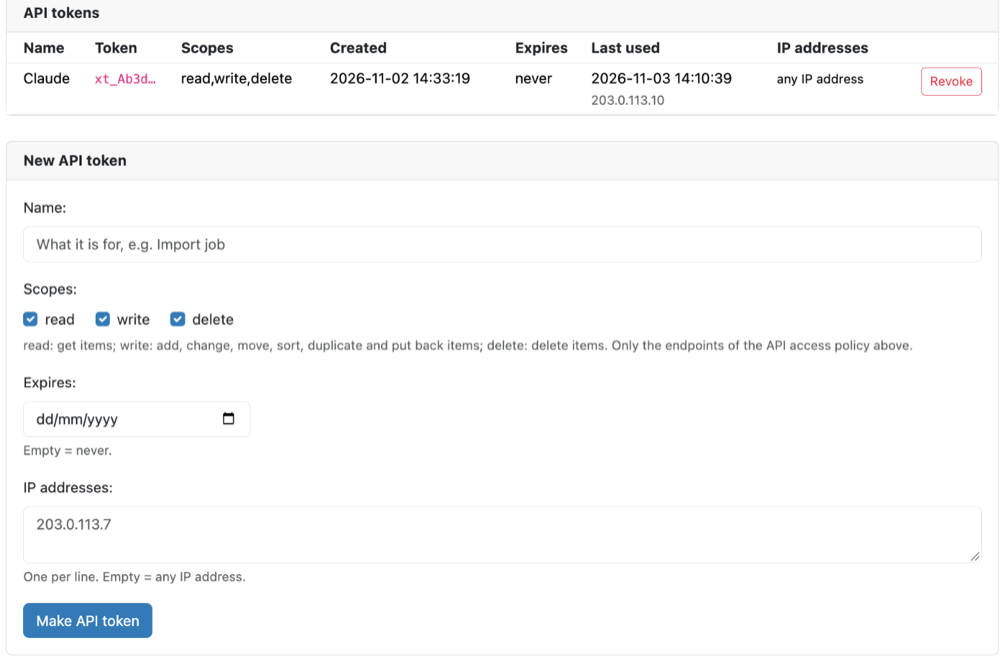
You now see The new API token. Copy it right away: it is shown only once and cannot be retrieved later. If you lose it, make a new token and revoke the old one.
Keep a token safe like a password. Never put it in an email, a shared document or a file that others can see. The list shows only the start of the token, followed by ….
Revoking an API token
- Open the API tokens page as described above.
- In the list, click Revoke next to the token and confirm.
The token stops working immediately. For each token the list also shows Created, Expires and Last used.
No key button or no form?
- If you don't see the key button, you are not in the API group.
- If it says You have no API access yet. Ask a developer., you don't have an API policy yet.
In both cases, ask Telartis to set it up.
See also
- What is Xanti AI?
- Connecting an AI assistant
- Working safely with an AI assistant
Checked: November 2026