Working safely with an AI assistant
An AI assistant works in your website with your permissions. These rules keep that safe, and let you see afterwards what it did.
Give no more than needed
- Tick only the Scopes the assistant needs: read to read, write to add and change, delete to delete. For a connection through claude.ai, these are the checkboxes on the Connect an application page.
- Choose an end date under Expires. A forgotten token then doesn't keep working forever.
- Use IP addresses if a token is only used from a fixed place, for example the server of an import link.
- Make a separate token with a clear Name for each assistant or program. Then you can revoke one without stopping the others.
Revoking a token or connection
- Open your own user and click the button with the key (API tokens).
- Click Revoke next to the token or connection and confirm.
The token stops working immediately. A connection with claude.ai then has to be made again. Do you think a token has fallen into the wrong hands? Revoke it right away and make a new one.
An assistant also reads texts written by others, such as comments or form answers. An instruction can be hidden in them. So check what the assistant changes, and give delete only if it is really needed.
Seeing what the assistant did
- Last used in the API tokens list shows when and from which IP address a token last worked.
- Every change is in the history of the item and in the Change History, in the name of the token's user. You can restore an earlier version.
- Deleted items are in the Trash. You restore them from there.
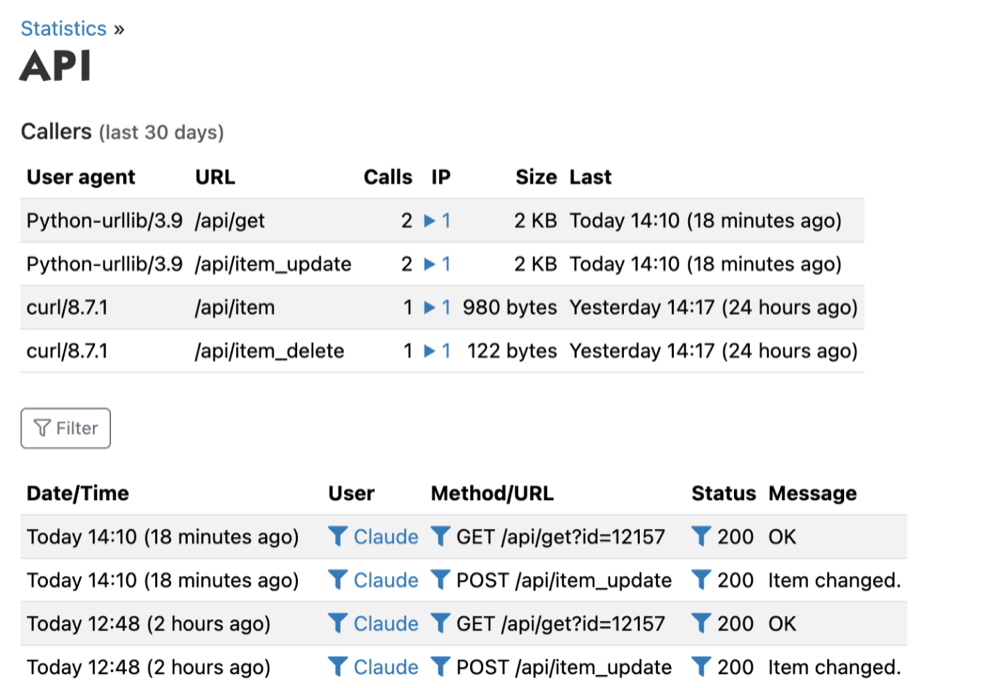
- Under Statistics > API you see every call to the API, with the date, the user, the endpoint and the IP address. Use the filters to find, for example, all calls by one user.
See also
- Making and revoking an API token
- Deleting something and putting it back from the trash
- Restoring a previous version
Checked: November 2026