Adding or editing a page
Every page of your website is in a folder in the admin. A page has a title, a URL name (the last part of the web address) and a text. This page explains how to add, edit and delete a page.
Adding a page
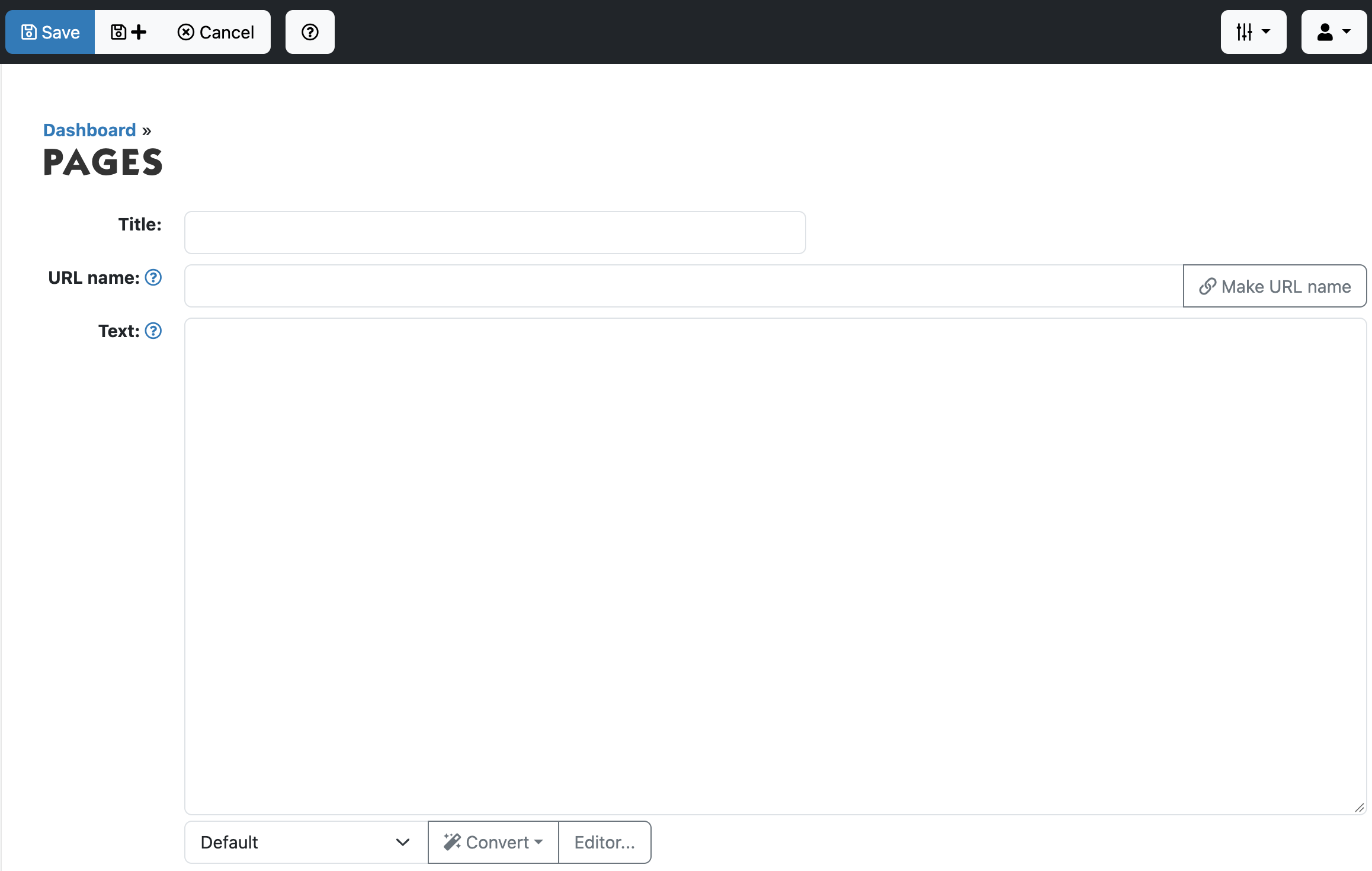
- In the tree on the left, click the folder the page should go in.
- At the top, click Add Page.
- Enter the title of the page at Title.
- Leave URL name empty: when you save, Xanti makes a URL name from the title. If you want to see the URL name first, click Make URL name.
- Type the text at Text. Click Editor... if you want to format the text with headings, bold or bulleted lists.
- Click Save.
A new page does not appear in your website's menu by itself. Add the page to the menu afterwards, see "Adding a page to the menu".
Editing a page
- On the left, click the page's folder. You see a list of the pages in that folder.
- Click the title of the page.
- At the top, click Edit.
- Change the title or text and click Save. If you decide not to change anything, click Cancel.
Looking for a page but don't know which folder it is in? Type a word from the title in the Search field at the top left.
To view the page on your website, click the link icon (Permalink) at the top. The page opens in a new tab.
Deleting a page
- Open the page as described above.
- Click Delete and confirm with OK.
A deleted page is still in the trash and you can restore it. You can also restore an earlier version of a page: open the page and choose More > Previous Versions.
See also
- Folders, order and visibility
- Adding a page to the menu
- URL names and redirects
- Formatting text in the editor
Checked: November 2026