Creating a layout with columns
Normally a text spans the full width of the page. With a layout you put text side by side in columns, for example text on the left and a photo on the right. You can make several rows below each other, each with its own layout.
Choosing a layout
- Open the page and click Edit.
- Below the text field, in the drop-down list (that shows Default or Treat as HTML), choose Layout.
- You now see the builder. In the strip with pictures, click the layout you want, for example two columns of equal width.
- Each column has a text field: Text 1, Text 2, and so on. Click Editor... on a column to format its text.
- Click Save.
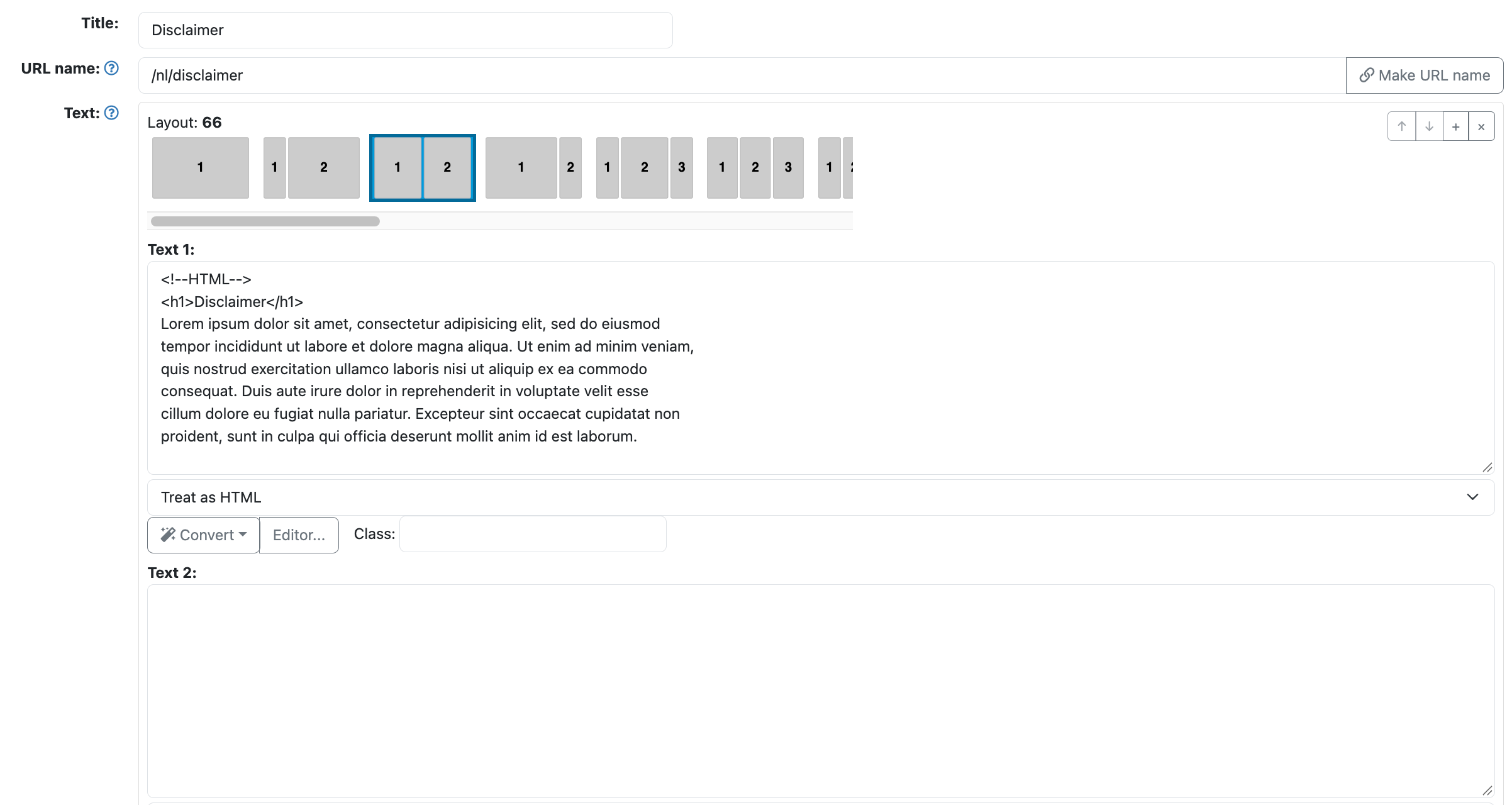
When you switch, your existing text ends up in the first column. So you don't lose anything.
Adding and deleting rows
- Click Add row for a new row below the others. Choose a layout for that row too.
- Click Delete row on a row to delete the row and the texts in it.
- With some layouts, such as a grid of cards, you add as many blocks as you like with Add item. With Move up and Move down you change the order.
On a phone, the columns are shown below each other. So put the most important text in the first column.
Which layouts you can choose differs per website. Missing a layout? Contact us.
See also
- Adding or editing a page
- Formatting text in the editor
Checked: November 2026