Adding a page to the menu
Your website's menu is made of menu items. A menu item has a title and a URL: the address of the page it leads to. So pages and menu items are separate: you add a new page to the menu yourself.
Adding a menu item
- In the tree on the left, click the folder with the menu, for example Menu.
- Do you want the item in a submenu? Then click Open next to the main item in the list.
- At the top, click Add Menu item.
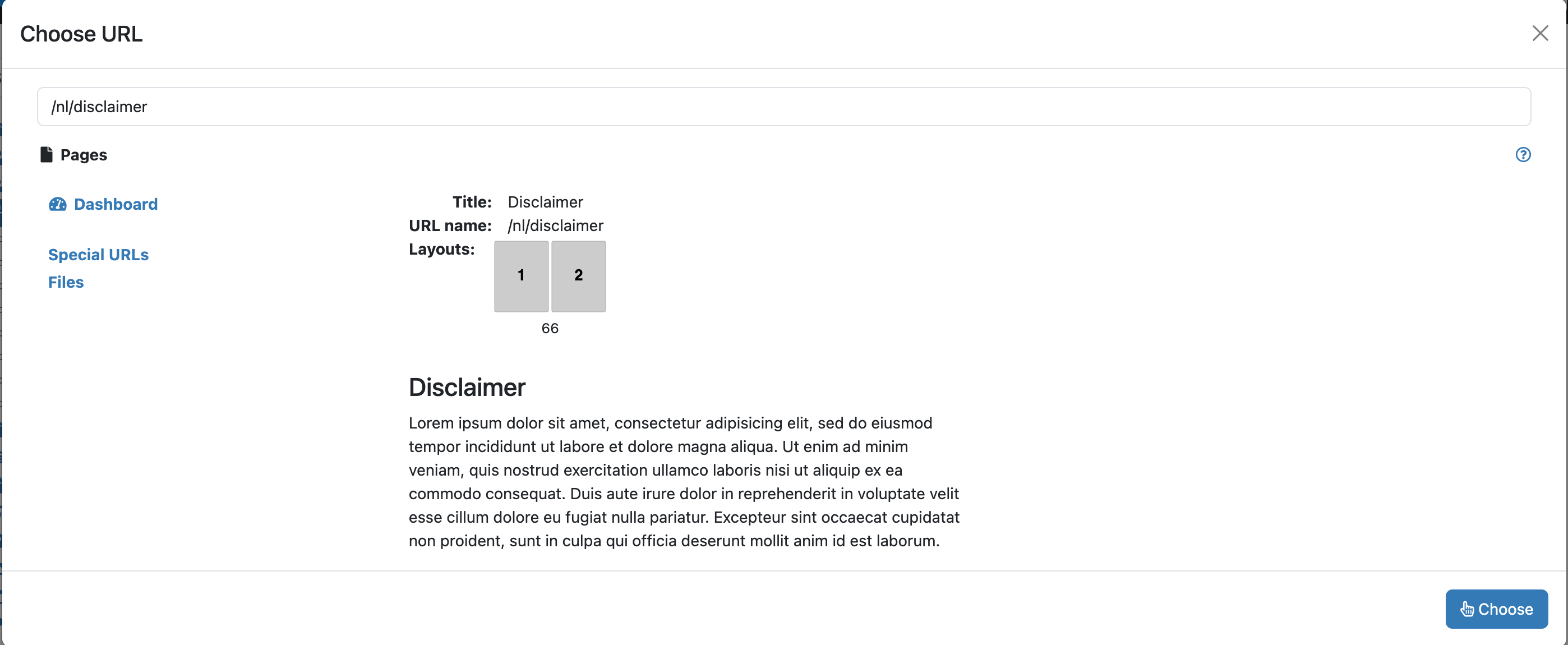
- At URL, click Choose URL. A window opens with your website's folders on the left.
- Click the page's folder and then the page. You see the address at the top of the window.
- Click Choose. The address is now at URL, and if Title was still empty, it now has the title of the page.
- Change the Title if you want a shorter name in the menu.
- Click Save.
Other settings
- Open link in new window: the page opens in a new tab. Only use this for links to another website.
- Use as a divider between menu items: the item becomes a line instead of a link.
- Dropdown menu: the submenu items drop down below this item.
- Permissions: who sees the menu item, for example only logged-in visitors. With and not you hide the item from a group instead.
Order and deleting
You change the order of the menu items via More > Sort, just like for pages. You delete a menu item in the list with Delete. You can only delete an item with submenu items once the submenu items are gone. When you delete a menu item, the page itself still exists.
See also
- Adding or editing a page
- Folders, order and visibility
- Creating a link
Checked: November 2026