URL names and redirects
The URL name is the last part of a page's web address, for example /about-us in www.example.com/about-us. A good URL name is short, contains only lowercase letters, digits and hyphens, and matches the title.
Changing a page's URL name
- Open the page and click Edit.
- Change the URL name field, or empty it and click Make URL name for a new name based on the title.
- Click Save.
Xanti then automatically creates a redirect from the old to the new URL name. You see the message Redirect from ... to ... added. This way, links on other websites, in e-mails and in Google keep working. If it was a mistake, click Undo redirect in the message.
If you move a page to another folder, the URL name stays the same. So links to the page keep working.
A new page in place of an old page
Have you made a new version of a page that should get the address of the old one? Then swap the URL names:
- Open the list of pages in the folder.
- In the table header, click the icon with the two arrows (Flip URL names).
- Choose the two pages and click Flip URL names.
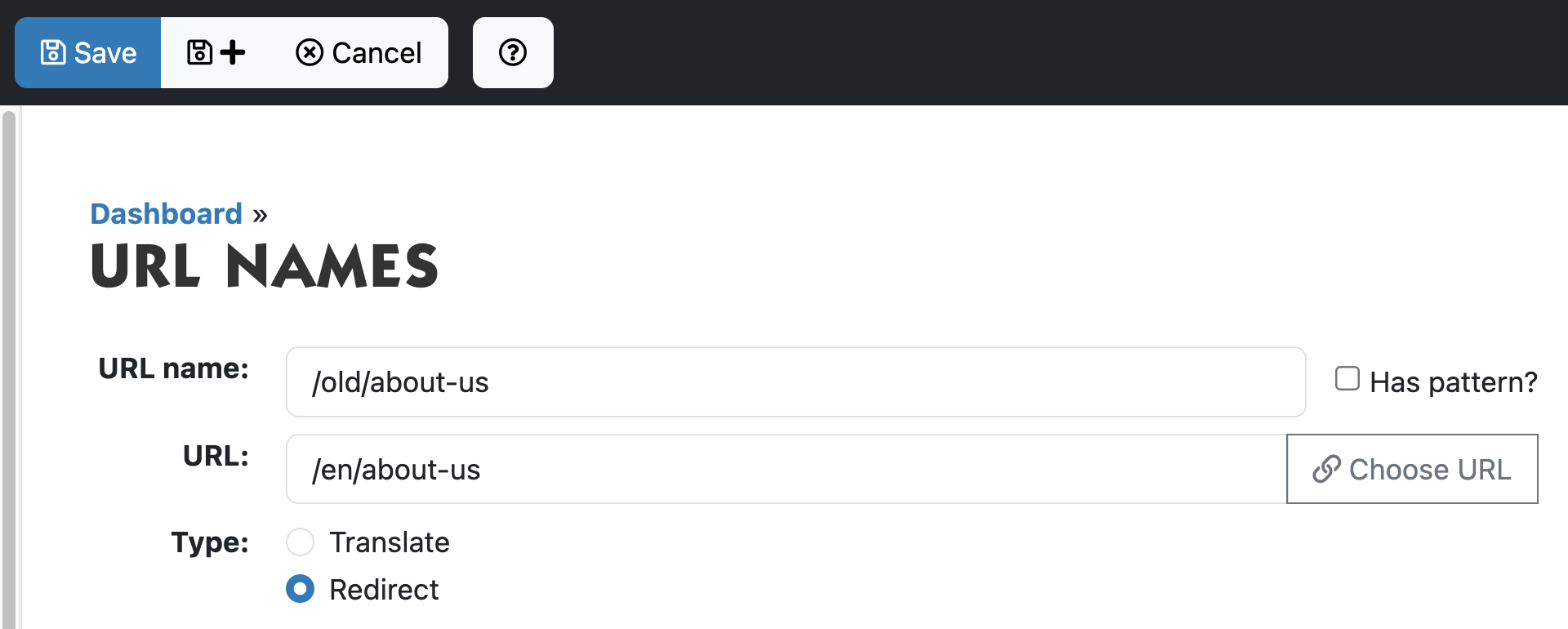
Creating a redirect yourself
Has a page been deleted and do you want to send visitors from the old address to another page?
- On the left, click the folder with URL names (often URL names).
- Click Add URL name.
- At URL name, type the old address, for example
/old-page. - At URL, click Choose URL and choose the new page.
- At Type, choose Redirect and click Save.
A link doesn't work
- Open the link in a new tab. If you see "not found", check that the page still exists and that the URL name is correct.
- Is the page in a folder with the Webmaster permission? Then only you can see it, visitors can't.
- On the dashboard, under Checks, you find Link Check: a list of links in your texts that don't work. Click a link to open the page that contains it.
See also
- Adding or editing a page
- Creating a link
- Folders, order and visibility
Checked: November 2026