Folders, order and visibility
Pages are in folders. Folders keep the admin well organised. On the folder you also set who may see the pages.
Creating a folder
- On the left, click the folder the new folder should go in.
- At the top, click New Folder.
- Enter the Folder name.
- At Folder content, choose what goes in the folder, for example pages.
- At Permissions, choose who may see the content (see below).
- Click Save.
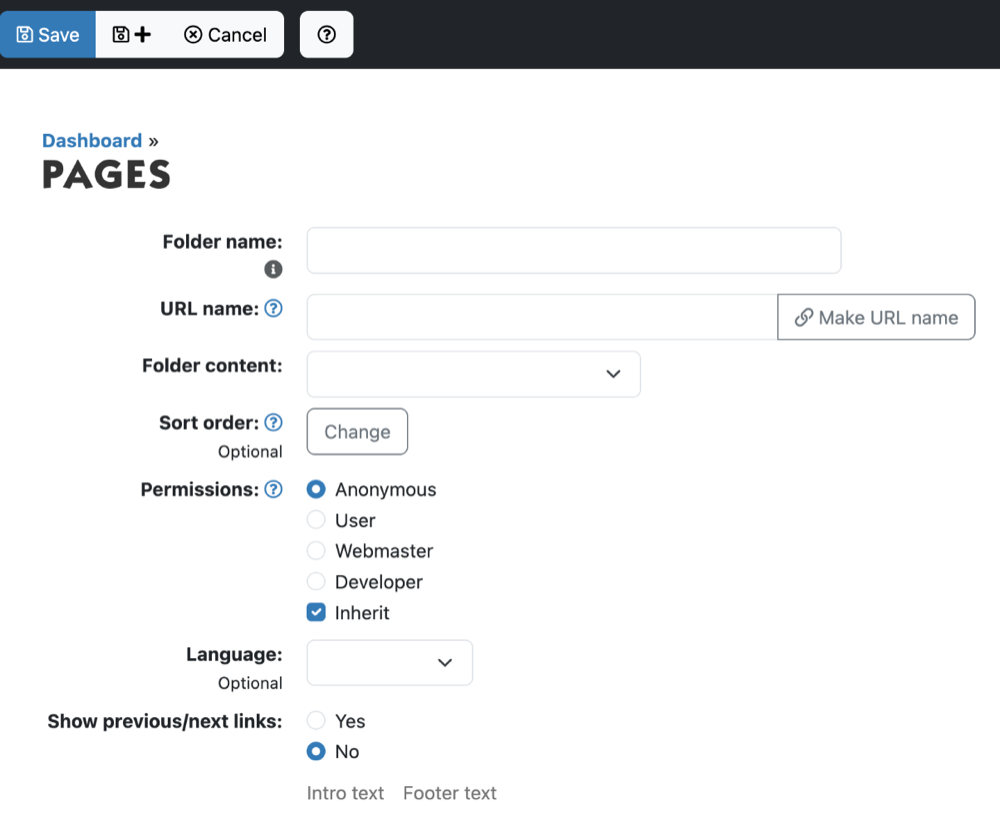
Who may see the pages?
At Permissions of a folder you choose a group:
- Anonymous: everyone, including visitors who are not logged in. The pages are public.
- User: only visitors who are logged in.
- Webmaster: only administrators. The pages are not on the website. Useful for pages that are not ready yet.
If your website has its own groups, they are listed too. Tick Inherit if all pages and subfolders in this folder should get the same permissions.
A new page gets the permissions of the folder you create it in. Want to take a page off the website for a while? Use Move to move it to a folder with the Webmaster permission.
Changing the order of pages
- On the left, click the folder.
- At the top, click More and under Items choose Sort.
- Choose manually.
- Drag the rows into the right order, or click a row and use the arrow buttons Top, Up, Down and Bottom.
- Click Save sort order.
Do you see a message that sorting is not possible? Then the folder sorts automatically, for example by title. Click Edit Folder and change the Sort order with Change.
Note: you set the order in your website's menu separately, on the menu items.
See also
- Adding or editing a page
- Adding a page to the menu
- Users and permissions
Checked: November 2026