Title and description for search engines
Search engines such as Google and social media show a title, a short description and sometimes an image for a page. Xanti fills these in automatically, but you can write them yourself for each page. You do this in the Search & sharing block on the info page of the page.
- Open the page (or the news item, calendar item or another item with its own page) in the admin.
- Click the info icon at the top (the i in a circle). The info page opens.
- Scroll to the Search & sharing block. You see a Search result (roughly how Google shows the page) and a Share preview (how a shared link looks).
- Click Edit.
- Under Title, enter the title for search engines. The counter next to it shows how many characters you use; keep it under 60.
- Under Description, enter one or two sentences that tell visitors what they will find on the page. Keep it under 160 characters.
- Do you want your own image when the page is shared? Under Image, click Choose Image and pick an image. The best size is 1200 × 630 pixels.
- Click Save. You see the message All changes saved.
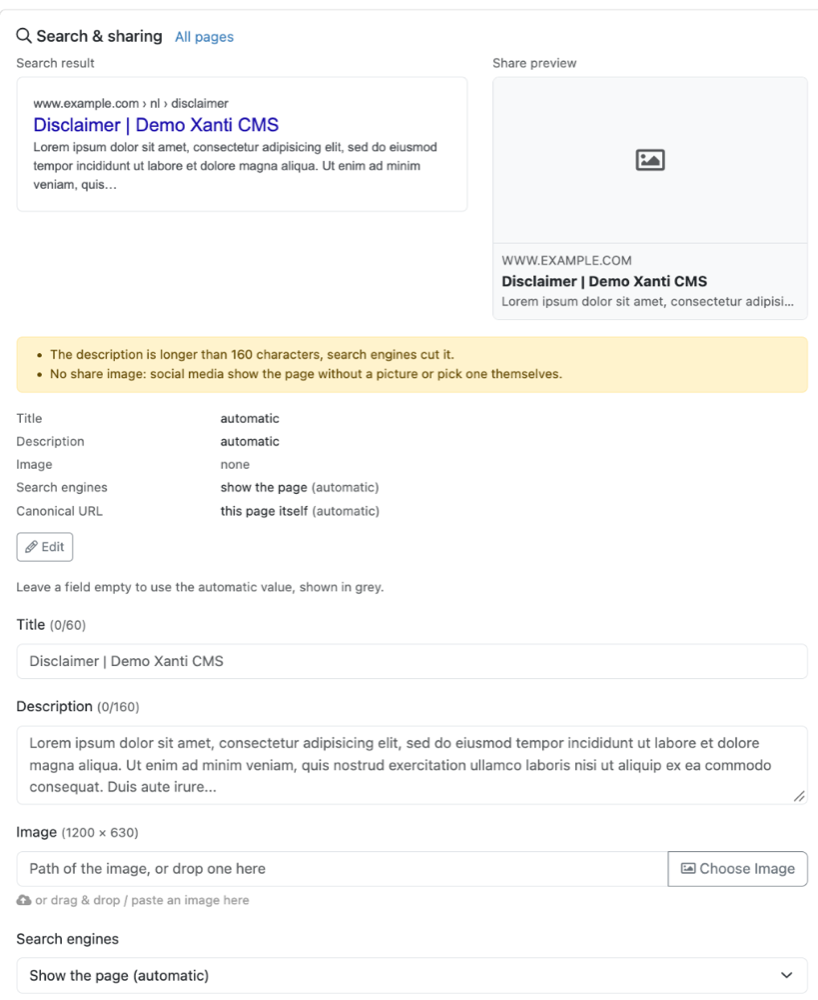
Leave a field empty to use the automatic value; it is shown in grey in the empty field. The automatic title is the title of the page, the description comes from the text and the image is the first image of the item. Your own Title also replaces the title in the browser tab.
Below the previews, Xanti gives tips in a yellow box, for example No description: search engines make one up from the page. or Another page uses the same title. Give every page its own title. An SVG image is not shown when a page is shared; choose a JPG or PNG.
Don't see the Search & sharing block? Then the item is not a page on the website, for example a menu item, a user or an item in a hidden folder.
See also
- Hiding a page from search engines
- Search & sharing overview
- URL names and redirects
Checked: November 2026