Calendars and opening hours
A calendar sets when customers can book a service. Xanti divides the opening hours of the calendar into time slots with the length of the service. So a 30-minute service with opening hours from 9:00 to 12:00 gives six times to choose from.
Creating a calendar
- On your website, go to /beheer/calendar, or click Calendars on the management page.
- Click Add.
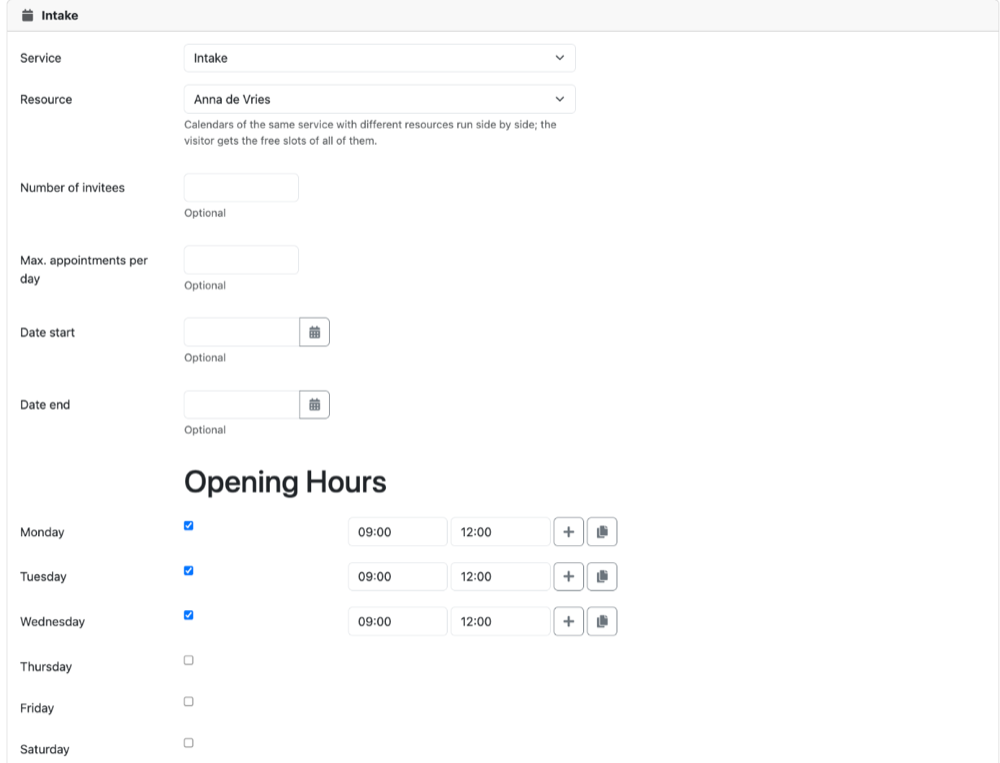
- Under Service, choose which service this calendar is for. Grouped services are listed together as Group 1, Group 2 and so on.
- Do you have resources? Then under Resource, choose which one this calendar belongs to, or leave it at - none -.
- Fill in, if you want:
- Number of invitees: how many customers can book the same time slot at once. Empty means one.
- Max. appointments per day: when this number is reached, that day is full. Empty means unlimited.
- Date start and Date end: the period in which the calendar applies.
- Under Opening Hours, set the days on which you take appointments to Open and fill in the start and end time. With the plus button, you add a second block on the same day, for example after lunch. With the copy button, you copy the same times to the other open days.
- Under Public Holidays, choose whether you are Open or Closed on public holidays.
- Is a certain day different, such as a day off? Under Special hours, click Add new date and fill in the date and times.
- Click Save.
After saving, you see how many appointments are possible in this calendar in the coming months. With the Make appointment button, you try out booking yourself right away. Is there a red message saying no appointment is possible? Then check the opening hours and the period.
Do several resources work with the same service? Then create a calendar for that service for each resource. The customer sees the free times of all of them and can choose No preference or a particular resource.
You cannot delete a calendar in which appointments have already been made. Do you want to stop using a calendar? Then fill in a Date end.
See also
- Services and resources
- Viewing and managing appointments
- The appointment pages on your website
Checked: November 2026