Viewing and managing appointments
You see all the appointments customers make on your website, on the management page Appointments. There you can view, move and cancel them, and add appointments yourself.
Viewing appointments
- On your website, go to /beheer/appointment, or click Appointments on the management page.
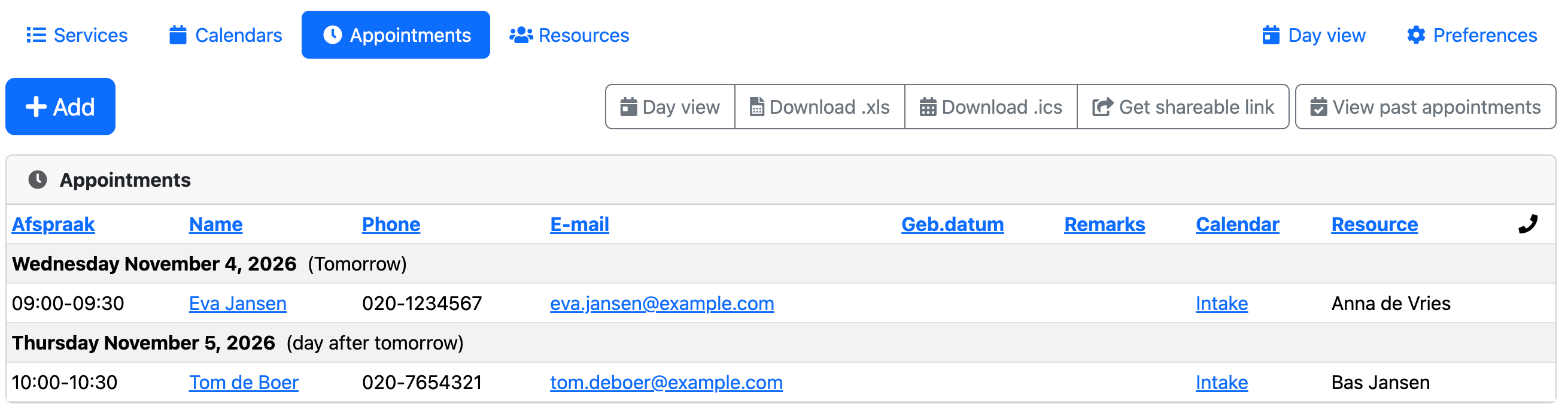
- You see the upcoming appointments per day, with name, phone, e-mail address, service and resource. An appointment in red with DUBBEL! (double) is double-booked.
- Click a name to see the whole appointment.
- Click View past appointments for the appointments before today, and View upcoming appointments to go back.
Click Day view for all the appointments of one day, per resource. With the arrows and Today you choose another day, and with Print you print the list.
Moving an appointment
- Click the appointment and then Change.
- Change the Date and the Start and End Time, or choose another Calendar.
- Click Save.
The reminder e-mail then goes out at the new time. The customer does not get a new confirmation. If you do want to send one, click Send appointment confirmation e-mail on the appointment.
Cancelling an appointment
- Click the appointment.
- Click Delete and confirm with OK.
The customer does not get an e-mail about this. So let the customer know yourself. If the customer cancels themselves through the link in the e-mail, they do get a cancellation e-mail automatically.
Adding an appointment yourself
- Click Add.
- Fill in the Name and the details of the customer, choose the Service and the Calendar, and fill in the Date and the Start and End Time.
- Click Save.
- Click Send appointment confirmation e-mail if the customer should get a confirmation.
With Download .xls and Download .ics, you get the appointments as a spreadsheet or as a calendar file. With Get shareable link, you get a secret link with which you see all the appointments in your own calendar app. Keep that link within your organization: anyone with the link can see your customers' details.
After the appointment, Xanti automatically deletes the name, e-mail address and phone number of the customer (see Setting up the appointment planner).
See also
- E-mails to customers
- Calendars and opening hours
- The appointment pages on your website
Checked: November 2026