Certificates
When a student has finished all the required parts of a course with a passing score, Xanti automatically creates a certificate for them. For each course, you set when someone gets a certificate.
Setting up a certificate
- Open the course folder. If there is no Accreditatie (accreditation) folder in it yet, click More > Course Check. Xanti then creates the folder.
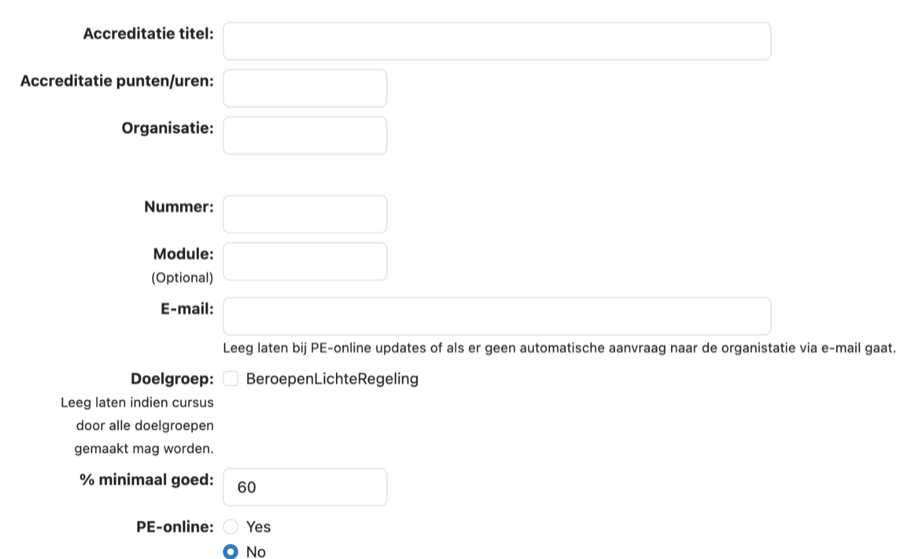
- Open the Accreditatie folder and click Add Accreditation.
- Under Accreditatie titel (accreditation title), enter the name of the certificate.
- Under % minimaal goed (minimum % correct), enter the score the student must reach at least. The default is 60.
- Leave Doelgroep (target group) empty if everyone may earn the certificate. If you tick job titles under Doelgroep, only students with that Functie (job title) get a certificate.
- Should the certificate only be available for a certain period? Then fill in Geldig vanaf (valid from) and Geldig tot (valid until).
- Leave Accreditatie punten/uren (accreditation points/hours), Nummer (number), Organisatie (organization) and E-mail empty, and choose Nee (no) under PE-online. Those fields are for accredited professional training.
- Click Save.
How the score is calculated
Only the parts with the option sanctionerend (counts) are included (see Building a course). The student must finish all of them. The score is the average of those tests, and each test must also reach the minimum on its own. If the score is too low, the student sees Onvoldoende score (minimaal 60% goed) (insufficient score, at least 60% correct).
If a student may retake a test (the option start opnieuw), they can improve their score. As long as the certificate has not been sent yet, Xanti updates the score when it goes up.
What the student and you see
On Mijn pagina (My page), the certificate is the last line of the course. Once earned, it says Afgerond op ... (finished on ...) with the button Download PDF. If your website sends certificates by e-mail, there is also Nogmaals versturen (send again).
As an administrator, you see a student's certificates below their details in Users. Open a certificate to see the score and the date, and to download it as a PDF (Download PDF) or send it again (Nogmaals versturen).
Once certificates have been issued, you can no longer delete the accreditation or change its dates. This keeps issued certificates correct.
See also
- Building a course
- Viewing tests and results
- Frequently asked questions about e-learning
Checked: November 2026