Viewing tests and results
Xanti saves all the answers and scores of your students. You can view them per test, per course and per student.
Results of one test
- Open the folder of the test.
- Click More and, under Questions, choose Results.
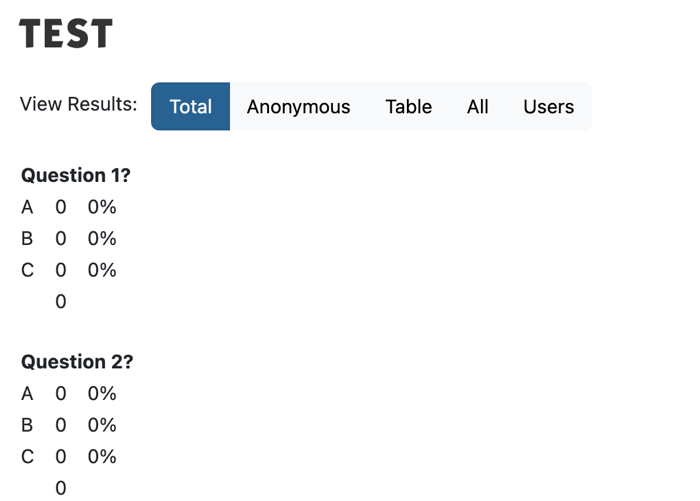
- Next to View Results, choose a view:
- Total: for each question, how often each choice was chosen;
- Anonymous: the same, without names;
- Table: the totals in a table;
- All: for each question, who gave which answer;
- Users: all the students who took the test. For each student you can view the answers (View), get them as a PDF (Download) or delete them (Delete).
Activity per course
- Open the Course folder of the course.
- Below the list, click Toon activiteit cursisten (show student activity). You see each student with Functie (job title), Organisatie (organization) and Datum laatste activiteit (date of last activity).
- Do you want to send the students a mailing? Click the button to add them to the group Students. With the second button, you put only those who have not finished yet in the group Course not completed.
The Dashboard also has the block Student activities with the last ten students. Under Statistics > Begonnen cursussen (courses started), you see per year how many students started each course.
Everything of one student
Open the student in Users. Below their details you see, for each course, the Score, whether they have finished it (Afgerond), the Datum laatste activiteit (date of last activity) and the Tijd besteed (time spent), and their certificates. Below that are the tests they took, with View and Delete. With the Mijn Pagina button, you see their overview the way they see it themselves.
A student cannot retake a finished test on their own, unless you switched on start opnieuw (start again) for that part. Do you want them to start again? Delete their answers with Delete and confirm with Yes, delete given answers. This cannot be undone.
With More > Delete Answers, you delete the answers of all the students of a test, for example after a test run.
See also
- Viewing and exporting results
- Certificates
- Recipients: groups, subscribing and unsubscribing
Checked: November 2026