Adding an event to the calendar
A calendar is a folder with events: meetings, course days, concerts. Each event has a start date and time, and optionally an end date, a location and an image.
Adding an event
- In the tree on the left, click the folder with the calendar.
- Click Add Event.
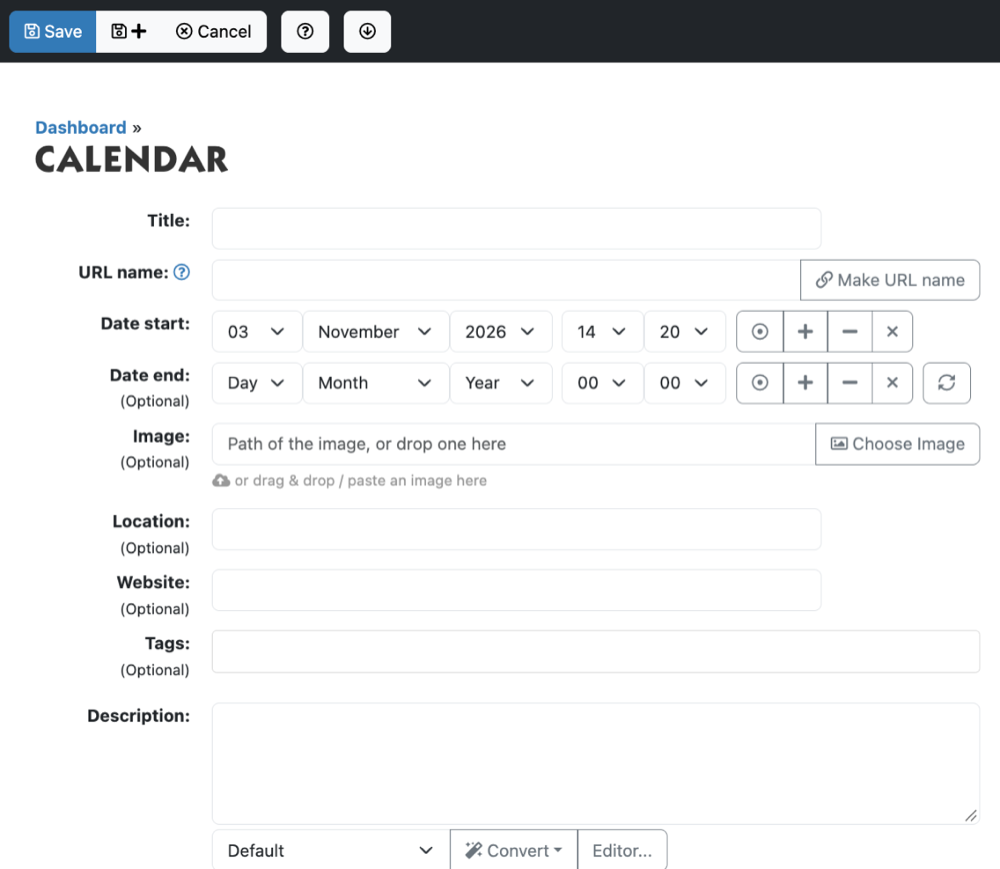
- Enter the Title. This field is required.
- Under Date start, choose the date and the start time.
- Does the event last longer, or do you want to show an end time? Then also choose a Date end. The button with the round arrows next to the end date copies the start date; after that you only need to change the time.
- Fill in the other fields if you need them:
- Image: click Choose Image or drag a photo onto the field.
- Location: where the event takes place.
- Website: a link to more information or to the registration.
- Tags: you only see this field if your website has a list of tags.
- Under Description, type the text about the event.
- Click Save.
An event does not disappear from the admin by itself when it is over. On the website, the link in the menu decides whether you see only upcoming events (see below). You can keep old events as an archive, or clean them up in one go with More > Delete using filtered items and a rule on Date start.
Putting the calendar in the menu
When you put the calendar in the menu, you also choose which events the visitor sees.
- Create a menu item and click Choose URL next to URL.
- Click the calendar folder. Extra choices appear above the list.
- Under Where, choose future: then you only see events from today onwards. If you choose all, past events are included too.
- Click Choose and save the menu item.
Do you also want an archive? Create a second menu item to the same folder, with past under Where and desc under Order. Then the most recent event is at the top.
A new calendar folder sorts the events by Date start, the next one at the top. You can see and change this in the Sort order of the folder.
See also
- Adding a page to the menu
- Choosing an image for news or another item
- Changing several items at once
Checked: November 2026