Creating a photo gallery
A photo gallery is a folder with images. Each photo album is a folder of its own. You can add photos one by one, or many photos at once from the Filemanager.
Creating an album
- In the tree on the left, click the folder where the album should go.
- Click New Folder.
- Enter the Folder name, for example Summer party 2026.
- Under Folder content, choose Images.
- Click Save.
Adding one photo
- Open the folder of the album.
- Click Add Image.
- Drag a photo onto the Image field, or click Choose Image and pick a photo from the Filemanager.
- If you like, enter a Title and a Description.
- Click Save. Xanti creates the smaller versions the gallery needs by itself.
Adding many photos at once
- Put the photos in a folder of their own in the Filemanager. If you have many photos, upload one zip file, click it and choose Extract.
- In the admin, open the folder of the album.
- Click More and choose Import.
- Choose Directory with filenames.
- Click through to the folder with the photos.
- Tick the photos you want to add. With Toggle All you tick everything at once.
- Click Import Filenames.
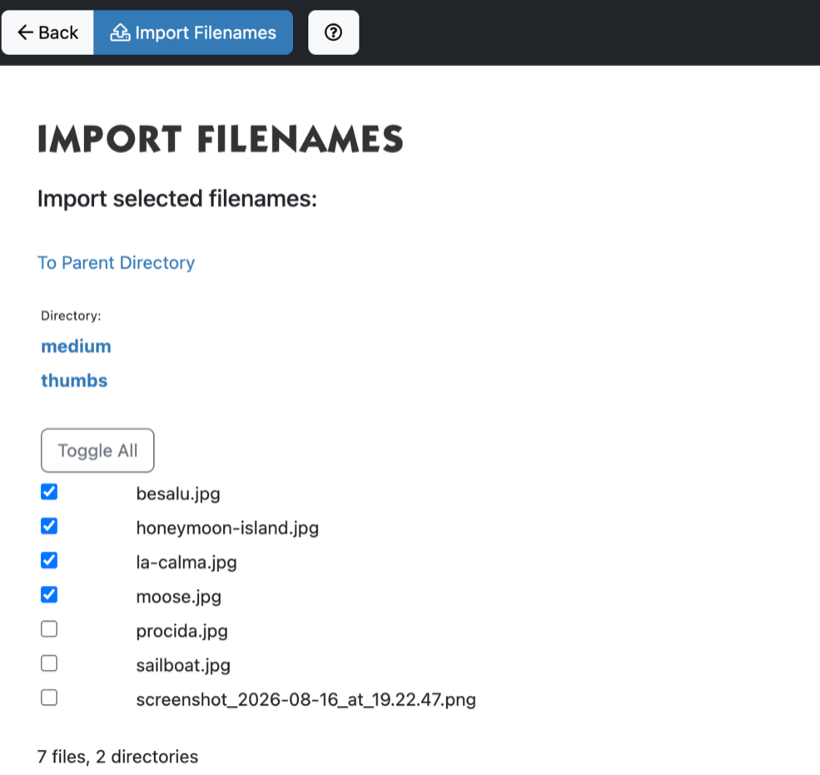
The photos are not copied: the album points to the files in the Filemanager. So don't delete or move the folder in the Filemanager, or the photos will disappear from the gallery.
The order of the photos
- In the album, click More and choose Sort under Items.
- Choose manually and drag the photos into the right order.
- Click Save sort order.
The gallery on the website
Put the album in the menu with Choose URL. Under View you choose how the photos are shown, for example as an overview with small photos (thumbnail) or as a slideshow (carousel). Which views are available differs per website.
Settings for all albums together, such as where the description of a photo appears, are under Tools & Settings > Preferences > Image gallery. Only a website with a photo gallery has this folder.
See also
- Choosing an image for news or another item
- Uploading and organizing files in the Filemanager
- Adding a page to the menu
Checked: November 2026