Managing a forum
On a forum, visitors post messages themselves and reply to each other. You can also use a forum as a guestbook. As a webmaster you create the forum, decide who may read and write, and remove messages that don't belong there.
Creating a forum
- In the tree on the left, click the folder where the forum should go.
- Click New Folder.
- Enter the Folder name, for example Forum.
- Under Folder content, choose Forum posts.
- Under Permissions, choose who may read the forum, for example everyone.
- Under Forum post messages, choose who may start a new topic and reply, for example only logged-in users.
- Click Save.
- Put the forum in the menu: create a menu item and, under URL, use Choose URL to pick the folder of the forum.
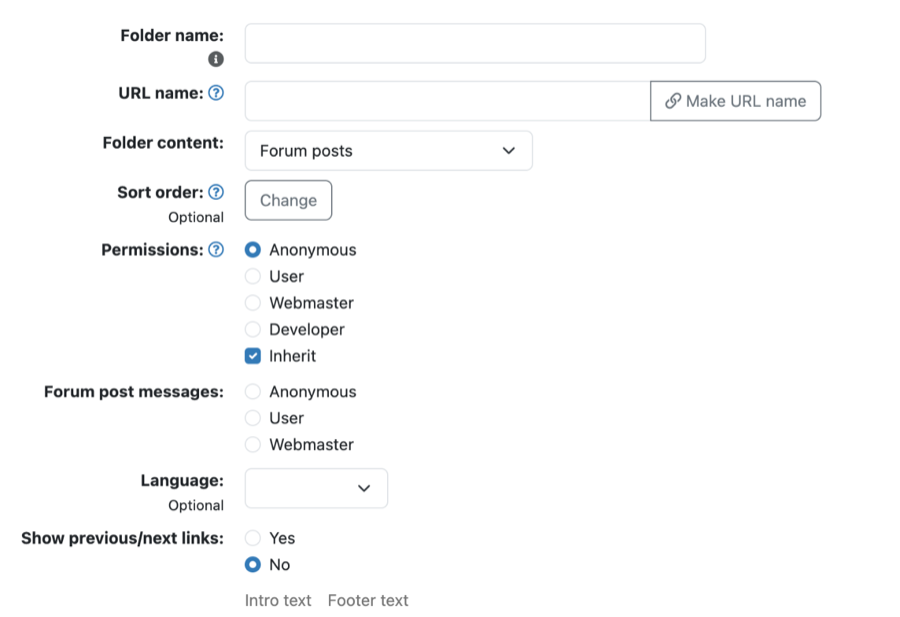
A visitor who is logged in doesn't need to enter a name and e-mail address with a message: Xanti takes them from their account.
May everyone post messages, even without logging in? Then you will soon get spam. Preferably let only logged-in users write. If that is not possible, turn on the option Use CAPTCHA for forum posts? in Preferences.
Viewing and deleting messages
- In the tree, click the folder of the forum. You see the topics with the name of the writer, the date and, in brackets, the number of replies.
- Click a topic. You see the message and the replies below it.
- Do you want to change a message? Click Edit. You can change the Subject, the Name, the E-mail address and the Message. Then click Save.
- Do you want to remove a message? Click Delete. The message goes to the trash together with its replies.
Replying yourself
- Open the topic.
- Click Add Message.
- Fill in the Subject, your Name, your E-mail and the Message.
- Click Save.
You can also simply reply on the website while you are logged in. Then your own name appears with the message.
See also
- Folders, order and visibility
- Groups and permissions
- Deleting something and putting it back from the trash
Checked: November 2026