Posting a news item
News items are in a folder with news, usually the News folder. On the website the newest item is at the top.
Adding a news item
- In the tree on the left, click the folder with the news.
- Click Add News item.
- Enter the Title. This field is required.
- Choose the Publication Date. Today's date is already filled in.
- Type the text of the item under Content.
- Fill in the other fields if you need them. They are all optional:
- Image: a photo with the item. Click Choose Image or drag a photo onto the field.
- URL: a link to more information. With Choose URL you pick a page of your own website, or you paste a web address. A YouTube link is shown on the website instead of the image.
- Source and Author: where the news comes from and who wrote it. Xanti suggests names you used before.
- Tags: you only see this field if your website has a list of tags. You choose from the tags in that list.
- Should the item stay at the top, even when newer items arrive? Then choose Yes under Sticky.
- Click Save.
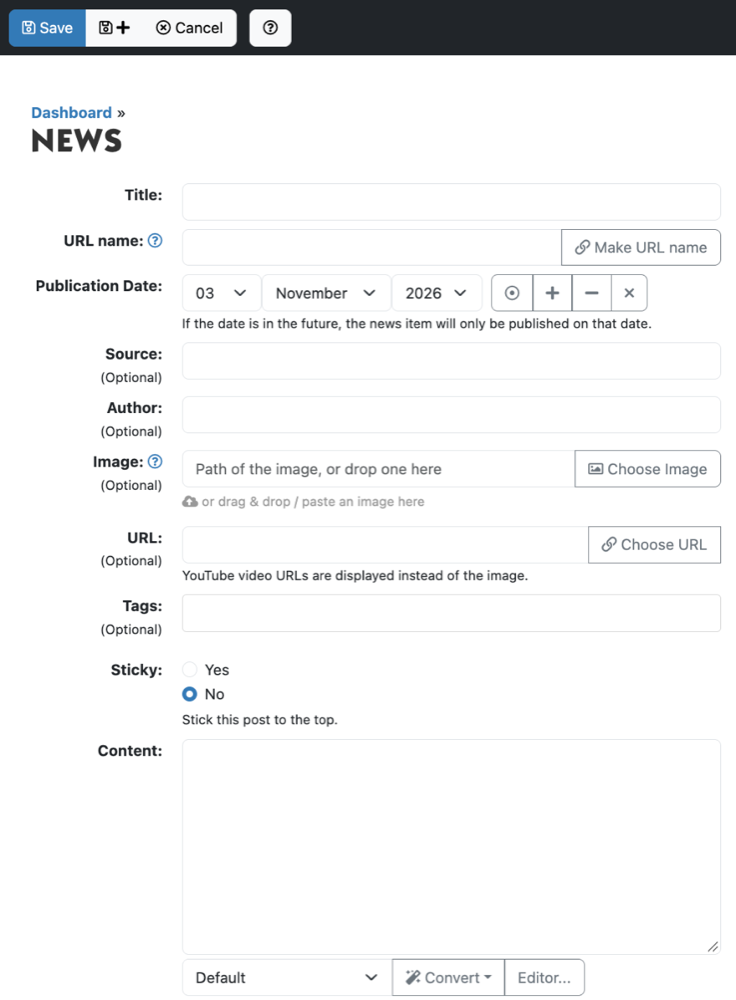
When you save, Xanti turns the title into a URL name, the address of the item on the website.
Do you want an item to appear later? Choose a Publication Date in the future. The item is already in the admin, but only appears on the website on that date.
Editing or deleting a news item
- In the folder, click the item.
- Click Edit, change the item and click Save.
With Delete the item goes to the trash. You can put it back from there.
Hiding fields you don't use
Do you never use a source or an author, for example? Then you can turn those fields off for the whole folder.
- In the news folder, click More and choose Edit under Folder.
- Under News View, tick what you don't need: Hide URLs, Hide Source, Hide Author or Hide Image.
- Click Save.
The field then disappears from the form of every item in this folder.
See also
- Choosing an image for news or another item
- URL names and redirects
- Changing several items at once
Checked: November 2026