Attachments to an item
Some items can have their own files: attachments. Think of an attachment to a mailing, a document for a user or a file with a forum post. Attachments are not public: only people who may see the item can open the attachment. So they are not in the Filemanager.
Such an item shows a block with the files and the Manage Files... button. For a mailing this is under Attachments.
Adding an attachment
- Open the item.
- Drag the file onto the block with the text or drag & drop files here. You can also click Manage Files... and click Browse Files in the window.
- The file appears in the item's list.
Below the upload box you see the maximum size of a file (Max). If the item already has an attachment with the same name, the new one gets a number added.
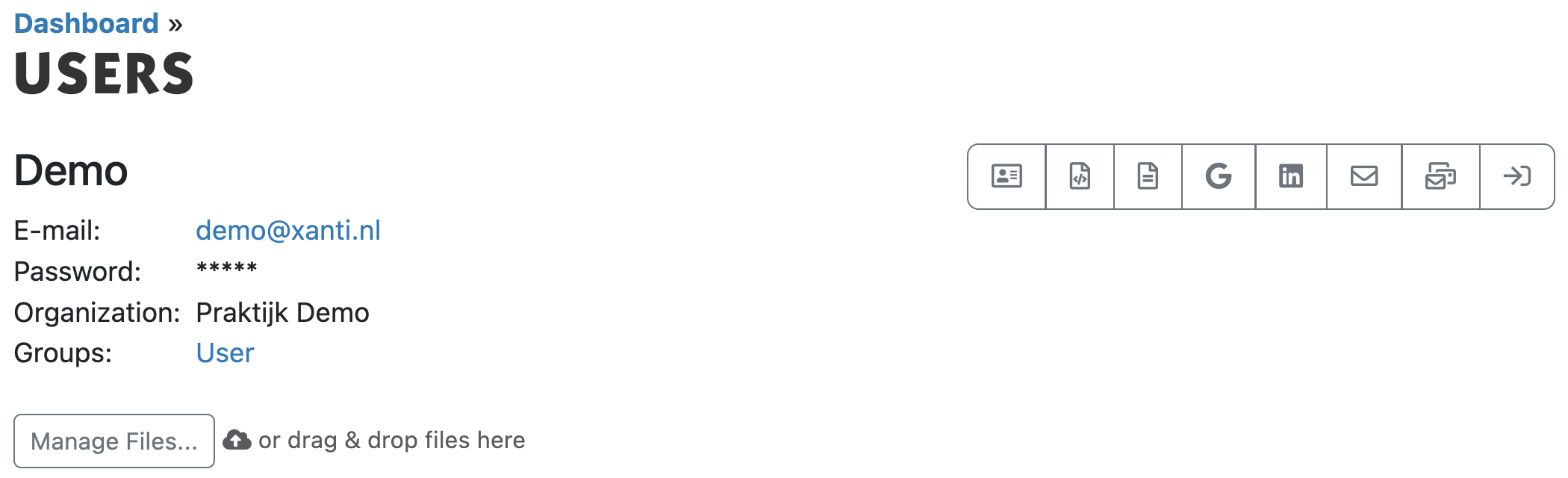
Managing attachments
- On the item, click Manage Files.... A window opens with all attachments.
- Click a file. You see a preview (for an image) and the buttons Download, Duplicate and Delete.
- Want to change the name? Type the new name next to Name and click Rename.
- Click Close. The item's page is refreshed.
With Download at the top you get all attachments in one zip file. A photo from an iPhone (HEIC) can be turned into a normal photo with Convert to JPEG. You can crop or rotate an image with Edit image; under Versions you can then restore an earlier version.
Restoring a deleted attachment
- In the Manage Files... window, click Trash.
- Click Restore next to the file.
If you want to put a file publicly on a page, use the Filemanager instead of an attachment.
See also
- Putting a PDF or other file on a page
- Uploading and organizing files in the Filemanager
- Cropping, rotating or resizing an image
Checked: November 2026