Uploading and organizing files in the Filemanager
The Filemanager holds all public files of your website: photos, PDFs, documents. Here you can upload files, create folders, and rename, move or delete files.
Opening the Filemanager
- At the top right of the admin, click the Tools & Settings button (the icon with the sliders).
- Choose Filemanager.
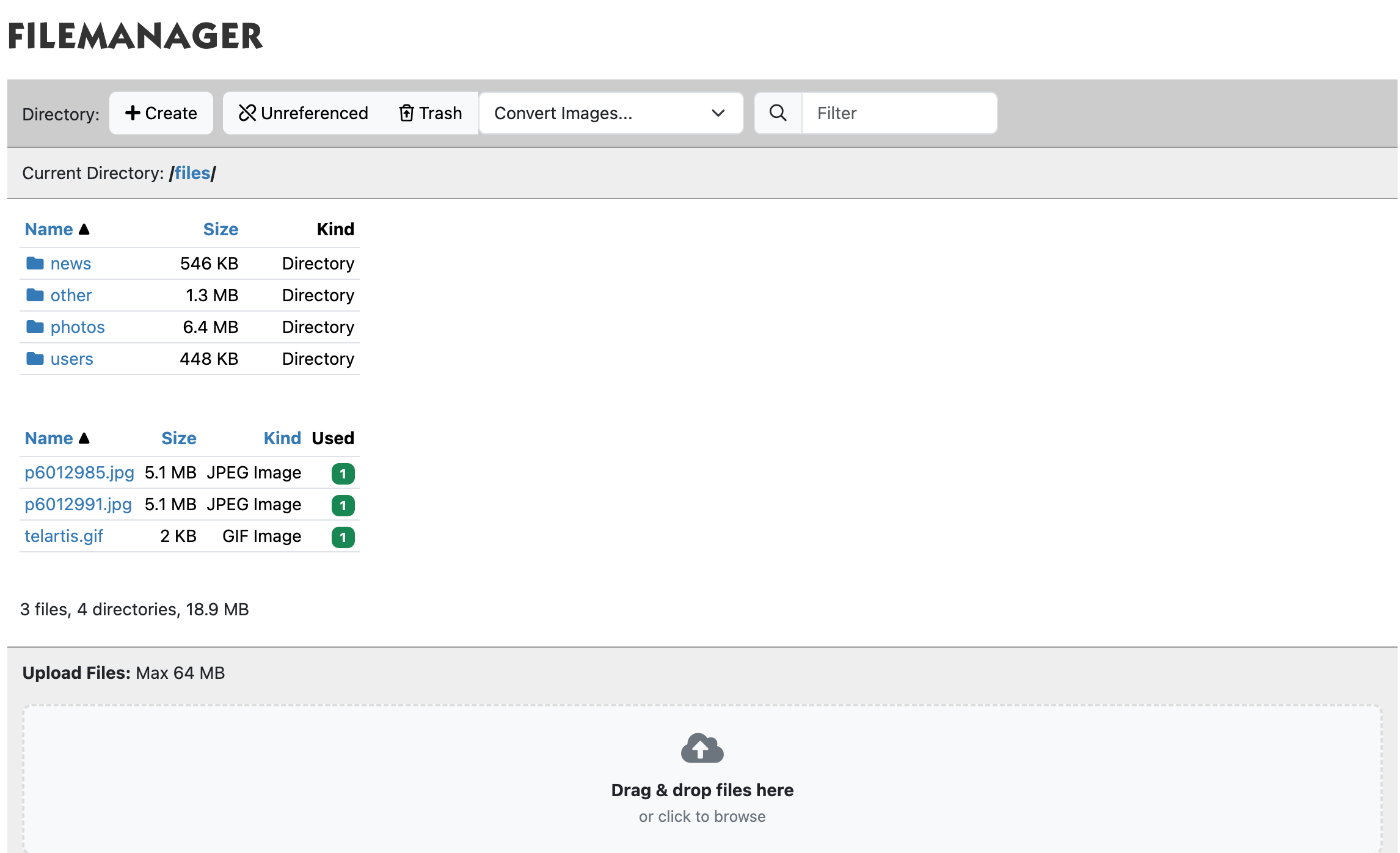
On the left you see the folders and files of the current folder. Above the list is Current Directory: click a part of that path to go up a folder. Use the Filter box to search quickly by name. Click Name, Size or Kind to sort differently.
Uploading files
- Open the folder where the file should go.
- Drag one or more files onto the Drag & drop files here box at the bottom, or click that box to choose files on your computer.
- Wait until the upload is finished. If a file with the same name already exists, the new file gets a number added, for example folder-1.pdf. The old file stays where it is.
Next to Upload Files you see the maximum size of a file. If dragging doesn't work, use Traditional upload: choose a file and click Upload.
Use short file names without spaces or odd characters, for example annual-report-2026.pdf. Visitors see this name in the link.
Creating a folder
- Go to the folder where the new folder should go.
- Click Create. A new folder untitled appears with an input field.
- Type the name and click Save.
Renaming, moving or deleting a file
- Click the name of the file. The details and a preview appear on the right; the button bar now shows the buttons for this file.
- Choose Rename (type the new name and Save), Move (choose the target folder and Move), Duplicate (makes a copy) or Delete.
When you rename or move a file, Xanti automatically updates the links and images on your pages. You then see the message References in ... object(s) updated. You cannot delete a file that is still used on your website. A deleted file first goes to the Filemanager's trash for 30 days.
Folders work the same way: open the folder and use the buttons after Directory:.
See also
- Seeing where a file is used, cleaning up and restoring
- Putting a PDF or other file on a page
- Cropping, rotating or resizing an image
- Attachments to an item
Checked: November 2026