Putting a PDF or other file on a page
Do you want visitors to download a PDF, Word file or other document? First put the file in the Filemanager, then make a link to it in your text.
Step 1: upload the file
- Open Tools & Settings > Filemanager.
- Open the folder where you want to keep the file, for example a documents folder.
- Drag the file onto the Drag & drop files here box.
Step 2: make the link in your text
- Open the page or item and click Edit.
- In the text editor, select the words that should become the link, for example Download the annual report (PDF).
- In the editor toolbar, click the button with the chain (link).
- The Choose URL window opens. At the bottom left, click Files.
- Click through the folders until you see the file, and click the file name. The address appears at the top of the window.
- Click OK and then Save.
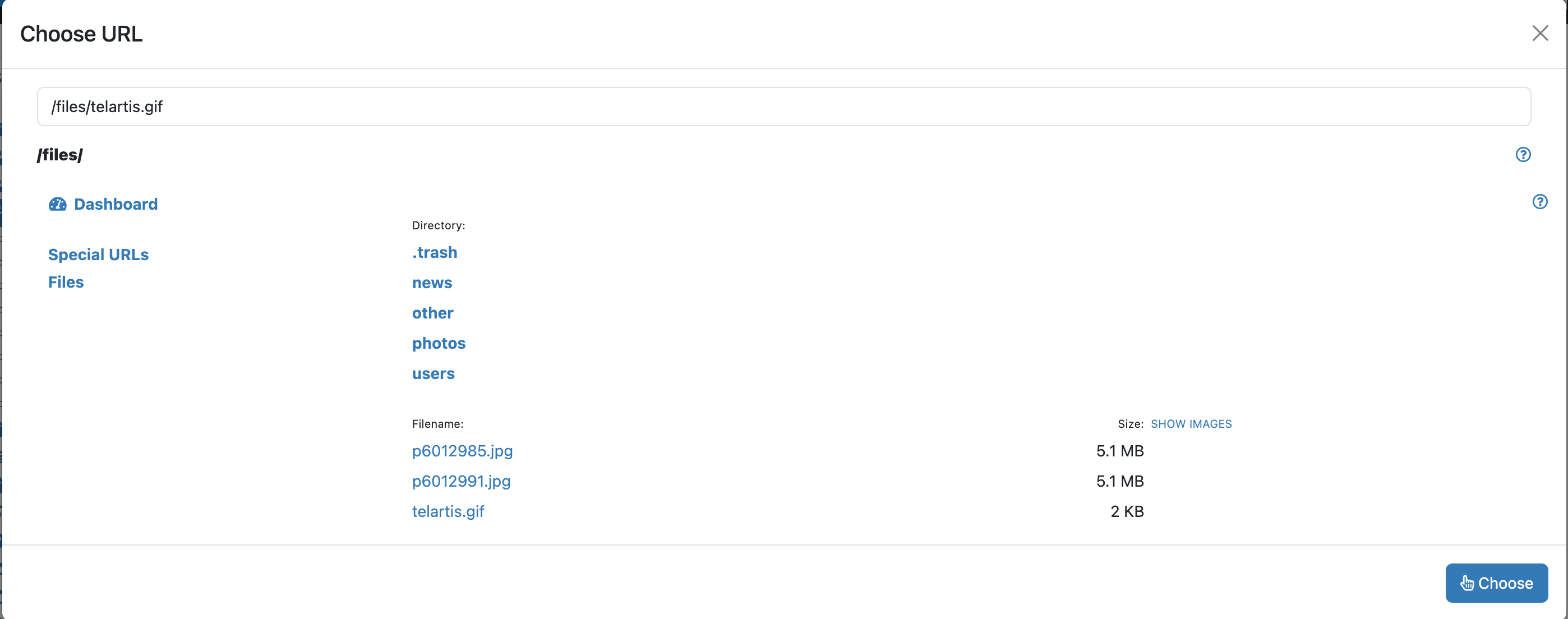
If you don't select any text, the address of the file itself becomes the link text. It's better to say clearly what it is and how big, for example Annual report 2026 (PDF, 2 MB).
Copying the address
Do you need the address of the file for an e-mail or another website? Click the file in the Filemanager. The address is shown on the right next to URL. Tick Use full links for the full address with your domain name, and copy it.
A new version of the document
Uploading never overwrites an existing file: a file with the same name gets a number added, for example annual-report-1.pdf. So upload the new version, change the link in your text as described above, and then delete the old version. The Used column in the Filemanager shows whether the old version is still used anywhere.
See also
- Uploading and organizing files in the Filemanager
- Seeing where a file is used, cleaning up and restoring
- Attachments to an item
Checked: November 2026