Choosing an image for news or another item
A news article, a calendar item, a product or a photo in a photo gallery has a fixed field for an image, usually Image. You choose an image from the Filemanager, or drag a photo straight onto the field.
Dragging or pasting a photo
- Open the item and click Edit (or create a new item).
- Drag a photo from your computer onto the Image field. While you drag, the field gets a dotted border and below it you see Drop an image here to upload it.
- Release the photo. It is uploaded, the path appears in the field and you see a preview.
- Click Save.
You can also paste an image you have copied into the field (Ctrl+V, on a Mac Cmd+V). Below the field you see the dimensions and the size, for example 1200 × 800 px, 240 KB. If it says File not found in red, the path is wrong.
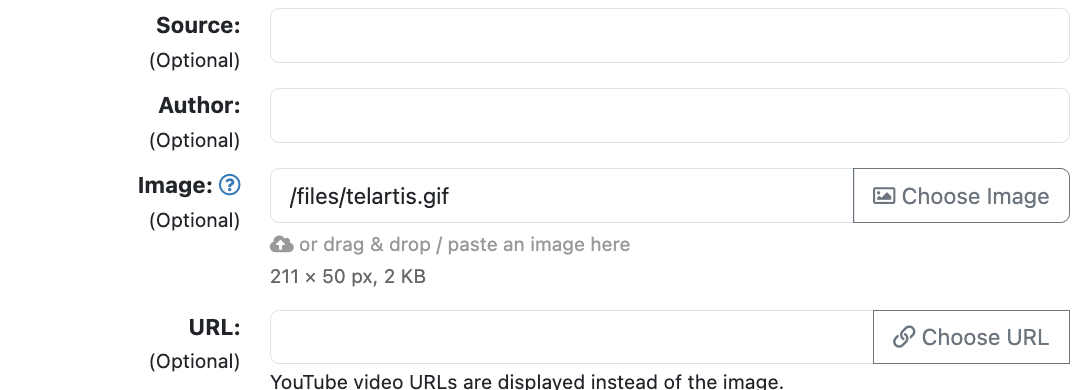
Choosing an image from the Filemanager
- Next to the field, click Choose Image.
- Open the folder, click the image and click Choose.
- Click Save.
What happens to the image?
When you save, Xanti makes the smaller versions the website needs itself, such as a thumbnail for an overview. So you don't have to make the photo in different sizes yourself. An uploaded photo goes into a fixed folder of that part of the site, for news for example in a folder per year.
Adding a photo to a photo gallery
- In the tree on the left, open the folder with the gallery's photos.
- Click Add Image.
- Drag the photo onto the Image field or click Choose Image.
- Optionally fill in a Title and a Description, and click Save.
See also
- Placing an image in a text
- Cropping, rotating or resizing an image
- Uploading and organizing files in the Filemanager
Checked: November 2026