Seeing where a file is used, cleaning up and restoring
The Filemanager keeps track of which files are used on your website. So before you delete something, you can see whether a file is still needed, and you can clean up unused files in one go.
Seeing where a file is used
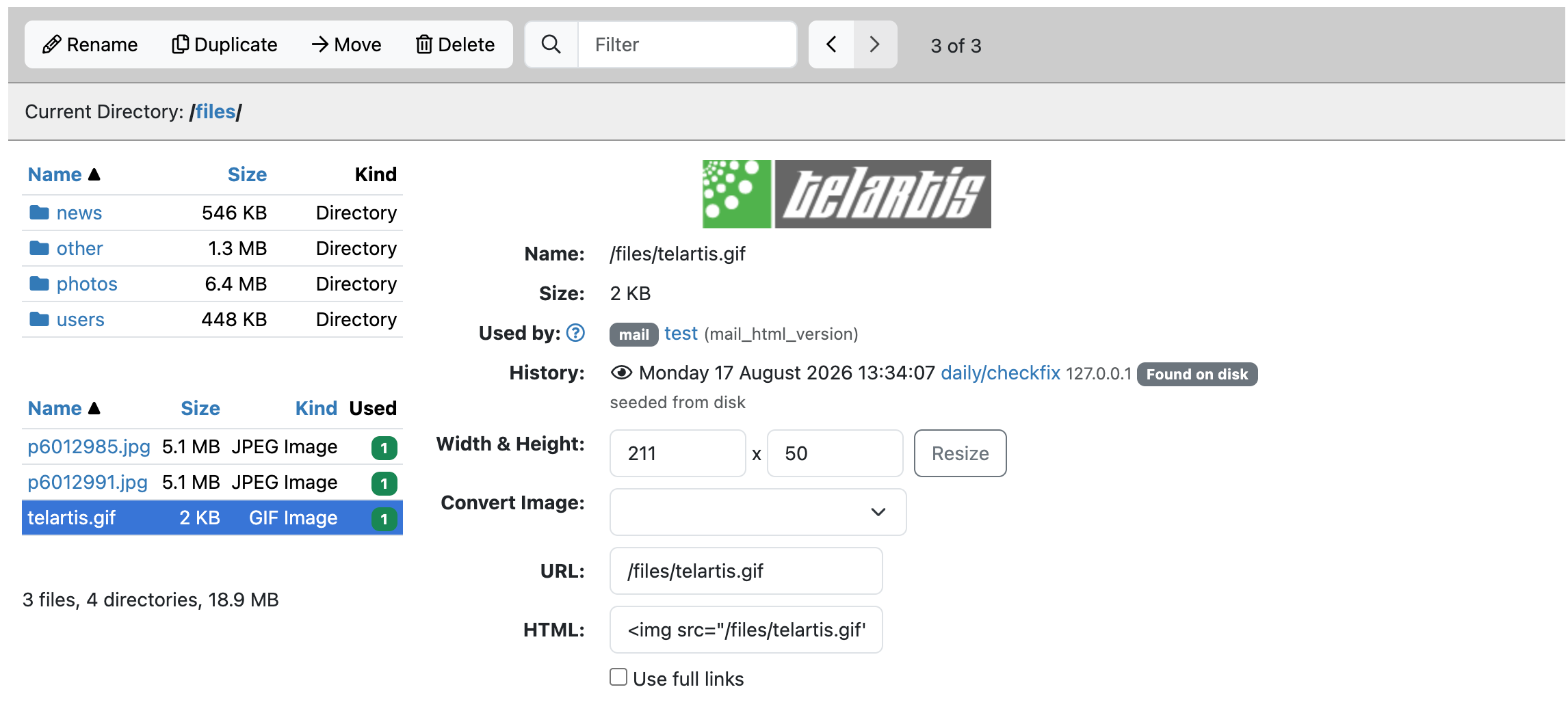
- Open the Filemanager and the folder with the file.
- Look at the Used column. A green number shows how many pages or items use the file. A grey 0 means: not used anywhere.
- Click the name of the file. On the right, Used by shows the list: the kind of item and its title. Click a title to open that item.
A smaller version of a photo (for example in the thumbs folder) counts as the photo itself. Under History you see who uploaded, changed or moved the file, and when.
Cleaning up unused files
- Open the folder you want to clean up.
- Click Unreferenced. The number on the button is the number of unused files in this folder.
- Check the list. Click Include subdirectories to include the folders below it too.
- Click Move all to the trash and confirm. All files in the list go to the trash.
Xanti does not know about a file that is only linked in an e-mail, a newsletter or another website. So check whether the list contains anything you still use outside the website.
Restoring a file from the trash
- In the Filemanager, click Trash. The number is the number of files in it.
- Find the file by its old location (Original location).
- Click Restore. The file is back in its old place.
Files stay in the trash for 30 days and are then permanently deleted automatically. With the cross or with Empty trash you delete them permanently right away; this cannot be undone.
Note: this is the Filemanager's trash. Deleted pages and other items are in the general Trash under Tools & Settings.
See also
- Uploading and organizing files in the Filemanager
- Putting a PDF or other file on a page
- Attachments to an item
Checked: November 2026