Cropping, rotating or resizing an image
In the Filemanager you can crop, rotate, flip or shrink a photo, without a separate photo program. This works for JPG, PNG and WebP files.
Cropping and rotating
- Open the Filemanager and click the name of the photo.
- On the right, click Edit image. The photo opens full screen.
- At the top, choose a ratio at Aspect ratio, for example 16:9 for a wide header or 1:1 for a square. With Free you choose the shape yourself; Original keeps the photo's ratio.
- Drag the frame to the part you want to keep. With the buttons at the top you rotate the photo a quarter turn, flip it, or zoom in and out. The arrows button resets everything.
- Do you also want to make the photo smaller? Enter the width in pixels at Output width. A photo is never made larger.
- Click Save to replace the photo, or Save as copy to keep the result as a new file next to the original.
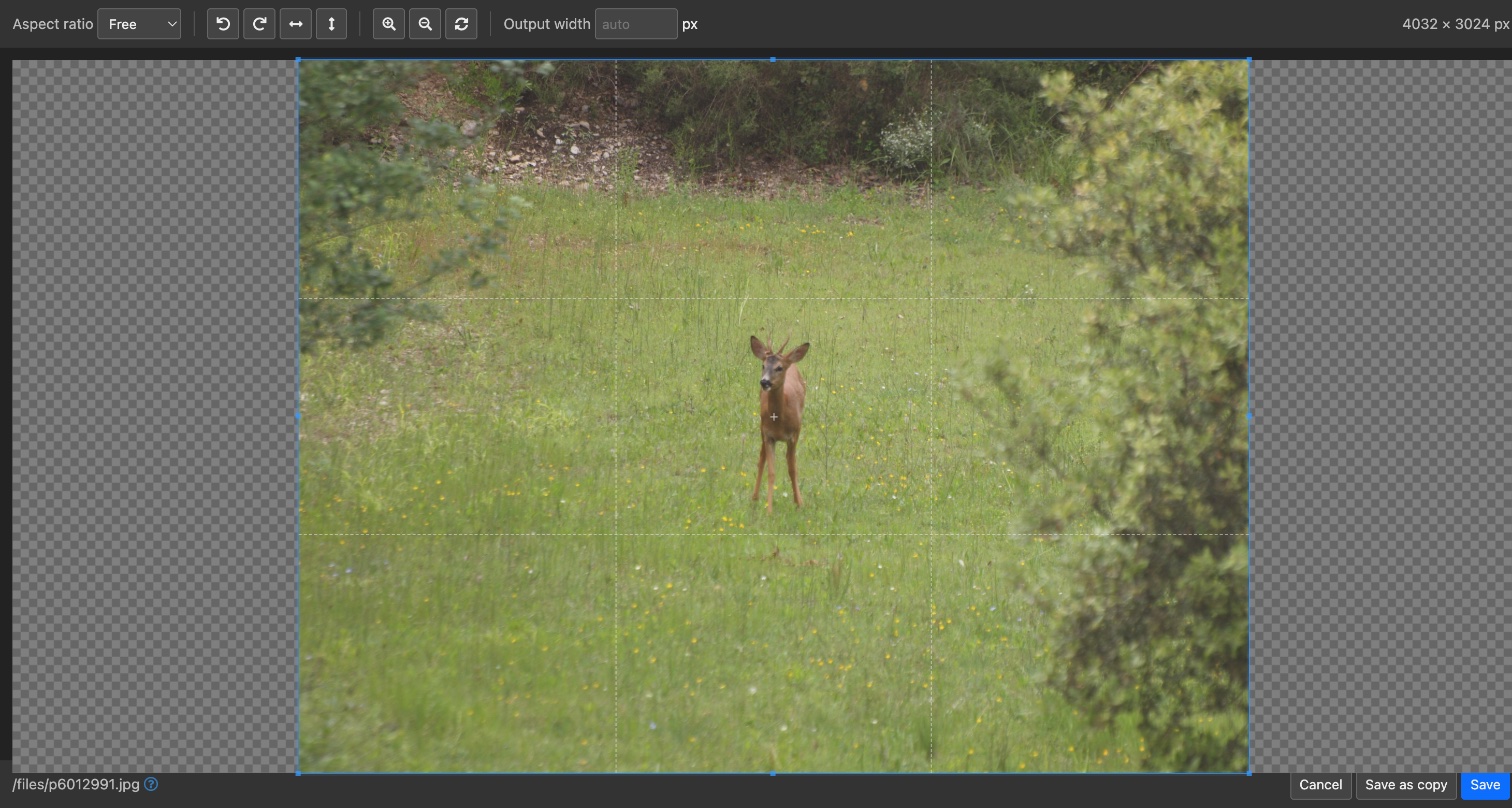
With Save the photo keeps the same name. So wherever it appears on the website, you see the new version right away; the smaller versions are made again as well. Not sure? Then choose Save as copy. With Cancel or the Esc key you stop without saving anything.
Still seeing the old photo on your website? Refresh the page in your browser (Ctrl+F5, on a Mac Cmd+Shift+R).
Only making it smaller
- Click the photo in the Filemanager.
- Enter a new width at Width & Height; the height adjusts automatically.
- Click Resize.
With the Convert Image drop-down list you can also do fixed edits, such as rotating or making a thumbnail. Which choices it offers differs per website.
You can edit the images in an item's attachments the same way: in Manage Files..., click the photo and then Edit image.
See also
- Uploading and organizing files in the Filemanager
- Choosing an image for news or another item
- Placing an image in a text
- Attachments to an item
Checked: November 2026